How to Disable Unnecessary Windows Background Services for Gaming
Disabling redundant background services in Windows can help free up valuable CPU, RAM, and network resources for your PC games.
 Radwan AbdulhadiEditor and technology writer
The Current Landscape of PC Hardware and Performance
PC gaming has historically been an expensive hobby, but recent economic and market pressures have made hardware components exceptionally costly. Initially, the demand for crypto mining hardware started creating GPU shortages across the global market. Subsequent pressures from AI processing squeezed the graphics card sector even further, while data center usage caused memory prices to shoot through the roof. Consequently, building a new PC or upgrading existing hardware has become a challenging investment for many enthusiasts.
Because immediate hardware upgrades are not always viable, users often look for software tricks to stretch their system performance as much as possible. While graphics handling remains the heaviest burden on a gaming rig—meaning a physical hardware upgrade is ultimately required to see a true improvement in frame rates—optimizing your software setup can still help your system run more smoothly.
Targeting Redundant Windows Features
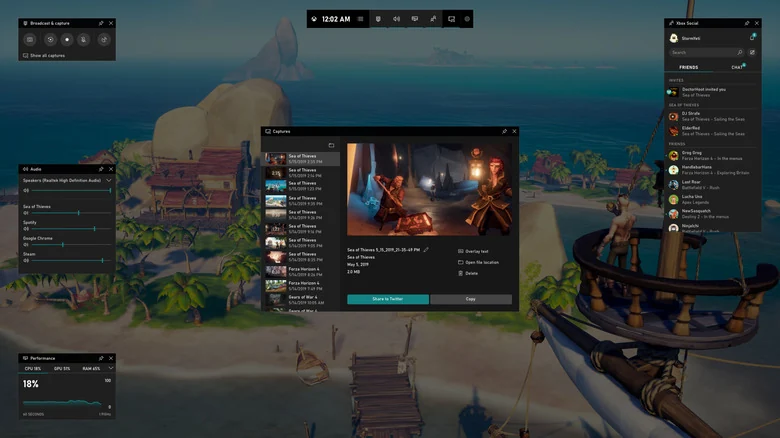
Windows runs many default services in the background that consume CPU, RAM, and network resources which are better dedicated to active games. One of the primary features recommended for closure is the Xbox Game Bar. Although the component is designed to simplify launching games and managing tasks like recording clips or playing music, it represents unnecessary overhead for players who rely on platforms like Steam.
To disable the Xbox Game Bar, users can navigate to Settings > System > System components, click the triple-dot icon next to Game Bar, and select Advanced options. From there, changing the background component permissions to 'Never' and clicking the terminate button will ensure it remains inactive.
Adjusting Search Indexing and Cloud Syncing
Another area to examine is Windows Search indexing. Reverting the setting from Enhanced mode to Classic mode can reduce unnecessary system strain. While Enhanced mode indexes the entire computer to locate any file instantly, it can negatively impact both CPU performance and battery life. Classic mode limits indexing strictly to standard user folders like Documents, Pictures, Music, and Desktop.
Cloud synchronization tools, including OneDrive, can also create performance hiccups during gaming sessions. These applications can cause sudden spikes in CPU and network usage while syncing settings and files in the background. Pausing syncing through the system tray for two, eight, or 24 hours can prevent these unexpected interruptions during online matches.
Managing SysMain and Startup Applications
The SysMain service is another target worth evaluating. Its standard function is to predict app usage and preload items into memory to speed up launches. However, this predictive loading can backfire when a user launches a demanding game instead of typical office applications.
Users can disable SysMain by searching for 'Services' in the Windows taskbar, locating the service in the list, right-clicking for properties, and changing the startup type to disabled. Additionally, keeping third-party startup apps under control through the settings menu can provide further performance relief.
Precautions When Tweaking Windows Services
While optimizing background processes can free up system overhead, users should avoid becoming overly aggressive with service modifications. Disabling critical system functions blindly can break essential Windows features or installed applications until a reboot is performed. Sticking to well-documented adjustments ensures a safer optimization process without unintended consequences.
Sources
- EngadgetWhich services can you safely disable to improve PC gaming?
Continue chronologically


Related entity coverage
Related stories
How to Set Up and Use Xbox Mode on Your Windows 11 PC
Learn how to activate and navigate Xbox mode on Windows 11 to create a controller-friendly, gaming-focused interface for your PC library.

Why Hardware-Accelerated GPU Scheduling Hurts Cheap GPUs
Tests show that hardware-accelerated GPU scheduling can consume nearly 1GB of VRAM, posing a major issue for 6GB and 8GB graphics cards.
Microsoft Updates Windows 11 with Memory and Performance Boosts
Microsoft has rolled out Windows 11 updates designed to improve responsiveness and memory efficiency, especially benefiting PCs with lower RAM.
Microsoft Gives Copilot More Control Over Windows and Files
Microsoft has announced major upgrades to Copilot at its Windows and Surface event, introducing Hybrid Intelligence to manage local files and OS actions.