Supercharge Windows 11 with the Built-In Task Scheduler
Windows 11 features a powerful, built-in automation utility that has been part of the operating system for years, offering users an effective way to handle repetitive computer chores without needing third-party software.
 Radwan AbdulhadiEditor and technology writer
Unlocking the Power of Windows Task Scheduler
Although it features a dated, gray interface that has largely avoided redesign meetings over the last decade, the native Task Scheduler utility in Windows 11 remains a highly capable automation tool. According to Microsoft, the system waits for a user-configured trigger—such as a specific time, a system event, Windows startup, or a login—before running an associated task. While the tool will not magically make a computer's processor run faster, it successfully takes repetitive jobs off the user's hands, defers resource-heavy applications that flood the system at startup, and executes background commands while the user is busy with other activities.
How to Properly Set Up a Scheduled Task
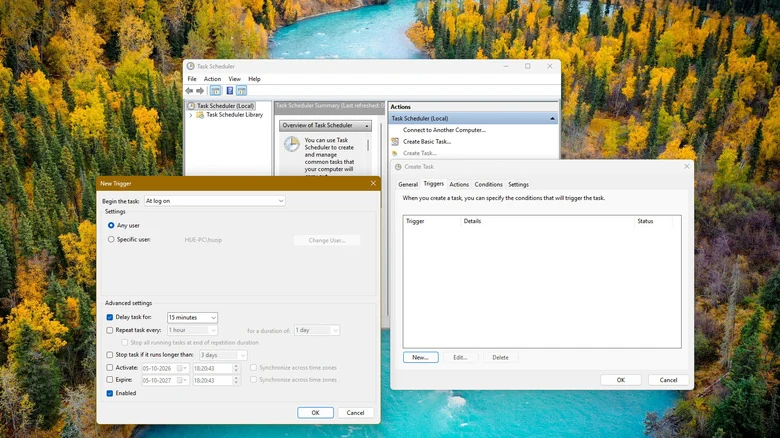
Getting started with the utility involves typing "Task Scheduler" into the Start menu and selecting the application. Users should bypass the friendlier "Create Basic Task" option and instead select "Create Task" in the right Actions pane to unlock the full range of operational controls. Within the configuration menus, operators can define custom triggers, direct the system to specific command-line tools or PowerShell via the Actions tab, and carefully manage conditions. Special caution should be applied when setting up laptops, as running a task every five minutes can prevent the computer from entering a low-power idle state. Furthermore, administrators advise against enabling the highest privileges unless a task explicitly requires them.
Practical Automation Scenarios Worth Implementing
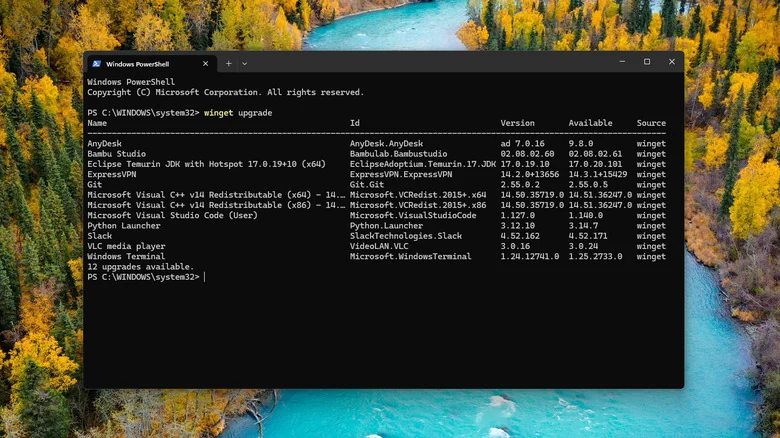
One effective implementation for the scheduling utility is keeping supported applications up to date using WinGet. By utilizing the package manager, users can schedule commands to silently upgrade eligible installed software packages automatically. Beyond software updates, the utility offers a viable middle ground for managing demanding software instead of strictly Trimming unnecessary startup apps. Rather than letting apps launch simultaneously during logon, users can disable their normal startup entries and instead launch them with a delayed logon trigger, allowing cloud storage clients and other frequent tools to appear a few minutes after the desktop loads.
Integrating PowerShell Scripts and Maintenance
The scheduling system also integrates smoothly with PowerShell for users who have already tested custom scripts, such as copying files to alternative locations or doing your own PC housekeeping. By configuring specific environmental conditions, operators can ensure that these routine jobs wait for designated idle time or AC power rather than interrupting active workflows. However, users should note that there is little reason to automate maintenance tasks that the operating system already handles independently. Storage Sense manages temporary files and Recycle Bin items automatically, while Windows natively optimizes both hard disk drives and solid-state drives.
Exploring Alternative Automation Options
While the native scheduler excels at background commands, system events, and script execution, other utilities serve different automation needs within the ecosystem. For tasks that require clicking through graphical applications or interacting directly with user interfaces, Power Automate for desktop provides a more suitable environment. Nonetheless, users should keep in mind that broader cloud deployments and unattended automation routines may require paid licensing tiers depending on their organizational requirements.
Sources
- EngadgetHow to supercharge your Windows 11 PC with this built-in automation tool
Continue chronologically
Related entity coverage
Related stories
Why Windows 11 Always Uses So Much RAM
Discover why Windows 11 uses a high percentage of your RAM, how memory management works, and when high usage actually signals a real computer issue.
How to Set Up and Use Xbox Mode on Your Windows 11 PC
Learn how to activate and navigate Xbox mode on Windows 11 to create a controller-friendly, gaming-focused interface for your PC library.

Microsoft Quietly Drops Copilot+ PC Branding on New Laptops
Microsoft has quietly stepped away from using Copilot+ PC branding on its latest laptops, despite the new hardware meeting previous requirements.
Windows 11 Marks Five Years Since Official Release
Microsoft's operating system marks its fifth anniversary since release, reflecting on early hardware controversies, AI pushes, and recent updates.