How to improve your laptop webcam quality and fix grainy video
Laptop webcams often struggle due to ultra-thin hardware limitations, but you can significantly enhance your video quality through lighting, cleaning, and software adjustments.
 Radwan AbdulhadiEditor and technology writer
Understanding Laptop Webcam Limitations
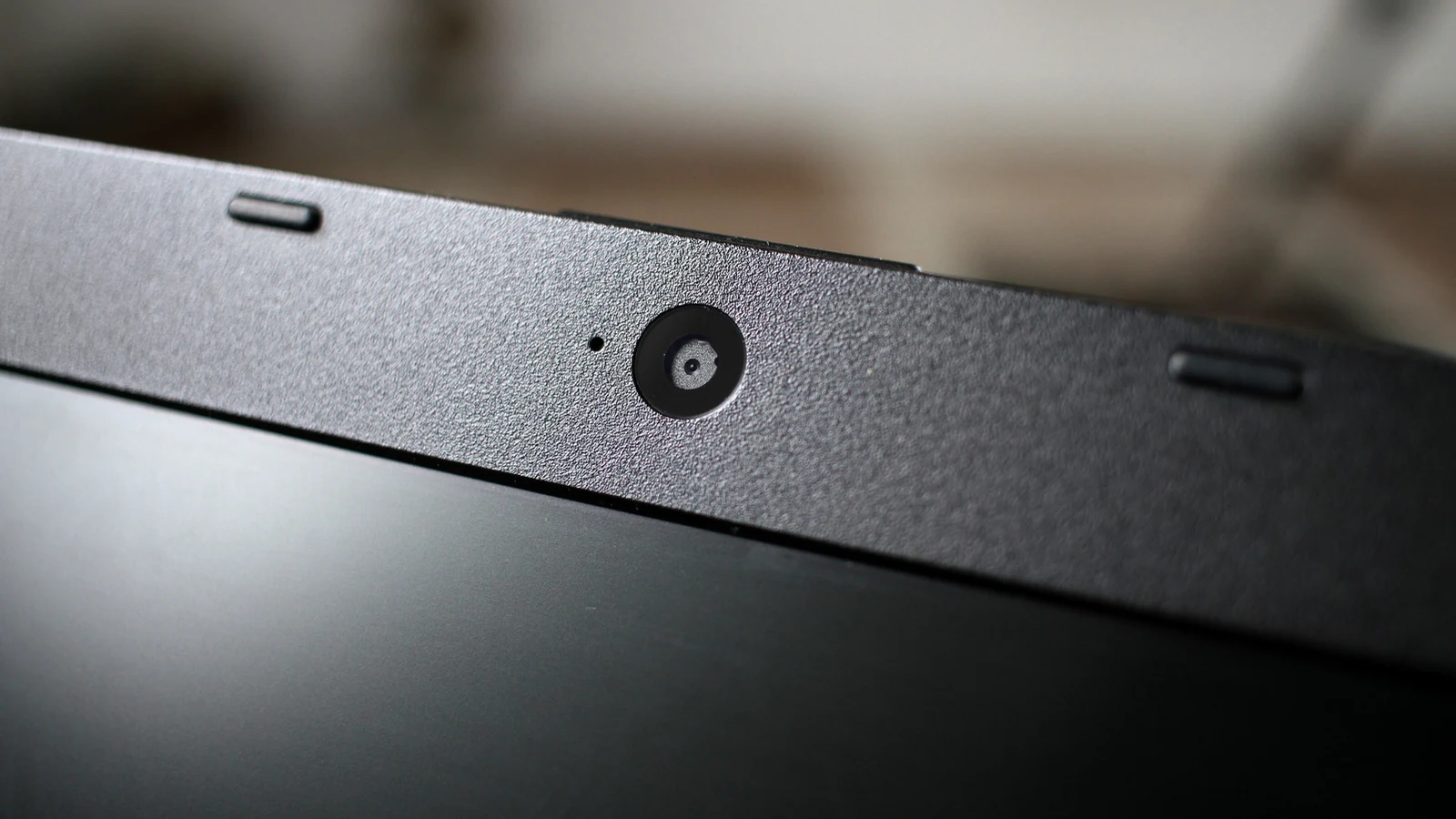
It is hard to point to a single reason why built-in computer cameras often look poor during video calls, as factors like ambient illumination play a major role. However, much of the issue stems from inherent hardware constraints. Laptop manufacturers must fit cameras into ultra-thin lids that measure only millimeters in thickness. Because large camera sensors found in smartphones cannot fit into these spaces, smaller sensors are used instead, which capture less light and often result in blurry, grainy, or washed-out images.
Fortunately, users can make up for these hardware shortcomings without necessarily spending money on a brand-new external webcam. Some of the most effective fixes are entirely free and require only minor adjustments to physical habits or device configurations.
Start With a Clean Lens
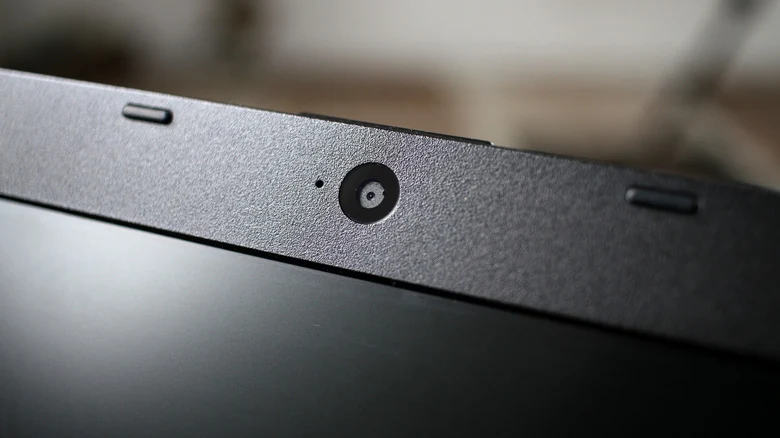
Before diving into complex software configurations, users should always begin by cleaning their webcam. Because the camera is usually located right where fingers touch the lid when opening the computer, natural oils and fingerprints frequently accumulate and blur the lens. Wiping down the lens before a video call makes a noticeable difference. A microfiber cloth is usually enough for cleaning, and users must avoid standard household cleaning products that can permanently damage the screen.
Optimize Your Lighting Setup
Lighting is arguably more important than any software setting when attempting to capture a clear video feed. Poor illumination will ruin an image regardless of the camera's baseline quality. Because most laptop webcams struggle to handle high contrast between light and shadow, filming with a bright light source directly behind you should always be avoided.
Instead, experts recommend facing a window rather than having it at your back. Placing a table lamp or an LED light in front of you can also yield great results. For dedicated streamers and remote workers, popular dedicated streaming accessories like the Elgato Key Light and the Logitech Litra Glow provide reliable, professional-grade illumination.
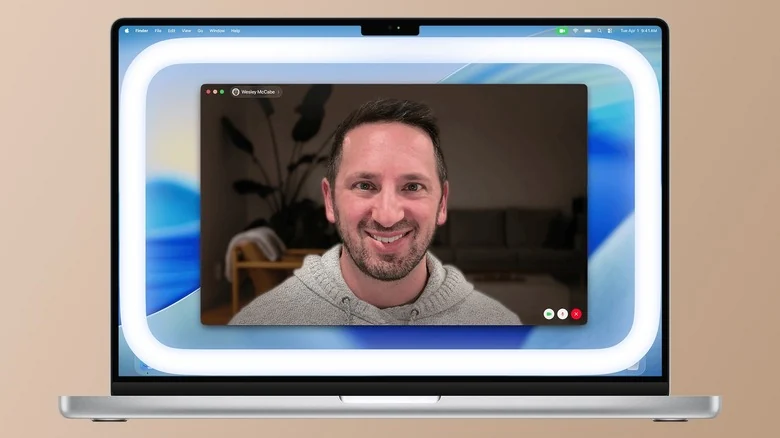
If external lights are not an option due to budget or space constraints, your computer screen can effectively double as a light source. Macs feature an Edge Light, which works like a ring light on your screen. This built-in capability has been available since macOS 26.2 and works across any Apple silicon Mac. While Windows lacks a native equivalent by default, third-party utilities can achieve similar illumination results.
Adjusting Software and Operating System Settings
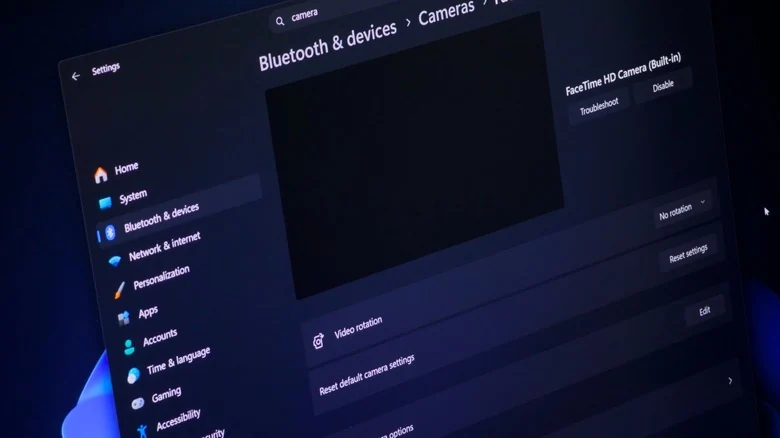
While software cannot completely overcome a low-quality sensor or terrible lighting, operating system adjustments can still noticeably improve your webcam's output. On Windows 11 personal computers, users can navigate to Settings, select Bluetooth & Devices, click on Cameras, and choose their active webcam. From there, adjustments to parameters like brightness and saturation become available. Any tweaks made will automatically serve as the new default for any applications utilizing the camera. Furthermore, some cameras support Video HDR within this menu to help balance challenging contrast between dark and bright areas.
Graphics cards also offer advanced enhancement tools. NVIDIA Broadcast utilizes GeForce RTX hardware to provide features like background noise removal and eye contact correction. Users lacking an NVIDIA graphics card can explore alternative tools like Camo for similar video-enhancing capabilities.
Mac users have a more streamlined set of built-in options. By clicking the green camera icon in the Menu Bar while the camera is active, users can access features like Studio Light alongside screen-based lighting options to improve their visual appearance during meetings.
When to Consider External Hardware
If your profession or daily routine relies heavily on video conferencing and none of the aforementioned maintenance tips provide sufficient clarity, upgrading to an external hardware solution may be the ideal path forward. Users can connect high-end standalone cameras to serve as webcams, or leverage alternative hardware such as an iPhone to function as a Mac webcam for superior image fidelity.
Sources
- EngadgetHow to improve your laptop's webcam quality
Continue chronologically

Related entity coverage
Related stories
Microsoft Quietly Drops Copilot+ PC Branding on New Laptops
Microsoft has quietly stepped away from using Copilot+ PC branding on its latest laptops, despite the new hardware meeting previous requirements.
How to Securely Wipe Your Old Laptop Before Disposal
Don't leave your personal data behind when upgrading your hardware. Follow these essential steps to back up, de-authorize, and securely wipe your laptop.
Microsoft Prepares for Windows, Surface, and AI Event
Microsoft is holding a major event in San Francisco to discuss local AI, the Surface Laptop Ultra, and upcoming agentic AI software integrations.

Nvidia Shield TV Pro Gets $100 Price Hike Due to AI
The 7-year-old Nvidia Shield TV Pro has received a $100 price increase to $299.99, as soaring component and memory costs tied to generative AI hit hardware.