How to Reset Your Samsung TV and Troubleshoot Glitches
Smart TVs occasionally run into software glitches, frozen streaming apps, or performance issues that require a system reboot or a complete factory reset.
 Radwan AbdulhadiEditor and technology writer
Understanding When to Reset Your Samsung TV
Device resetting has become an essential troubleshooting technique across the modern technology landscape. Beyond preparing hardware for a trade-in or sale, resetting is an effective method for fixing erratic behavior. According to reports from sources like Engadget, smart TV owners occasionally encounter frustrating problems such as a favorite streaming app repeatedly freezing or the operating system developing video glitches. Further details are available from Engadget in the original source material.
While a reset does not guarantee an immediate fix for every software bug, it serves as a reliable troubleshooting step when simple fixes fail. However, a full factory reset wipes out customized configurations like picture and sound preferences, requiring users to redownload apps and system updates afterward.
Preparation Before a Factory Reset
Before initiating a factory reset on a Samsung TV, users need to ensure they have all necessary credentials written down. This includes logins for streaming applications, passwords for Wi-Fi routers, and any relevant PIN codes. Once the reset procedure finishes, these credentials are required to reconnect to online services and resume watching content, unless the user relies solely on over-the-air television, Blu-ray players, or connected game consoles and PCs.
Owners may also want to get back online shortly after the reset completes to install the latest software updates for Tizen, which is Samsung's proprietary television operating system.
Steps to Perform a Full Factory Reset
When you are ready to proceed with a complete system wipe, navigate through the menu to locate the reset option. At the very bottom of the menu, click Reset. The system will prompt you to enter a PIN code. If you have never created a custom PIN for the television, you can enter the default code of 0000. Afterward, select OK to initiate the reset process.
Samsung periodically updates the Tizen interface in ways that may slightly relabel specific buttons and menu options. Even so, the core process remains consistent across different television generations. Users should look for similar labels and explore the settings menu if necessary.
Trying Soft Resets and Reboots First
If you are hesitant to wipe your television entirely, softer reset options are available to handle minor or one-off glitches. To perform a basic reboot, you can simply unplug the television for 30 seconds or hold down the power button on the remote control for five seconds. The television will briefly turn off and restart, displaying the Samsung logo upon booting back up.
Though it may seem straightforward, a basic reboot clears out system cache and RAM while restarting critical background processes that may have encountered a temporary glitch.
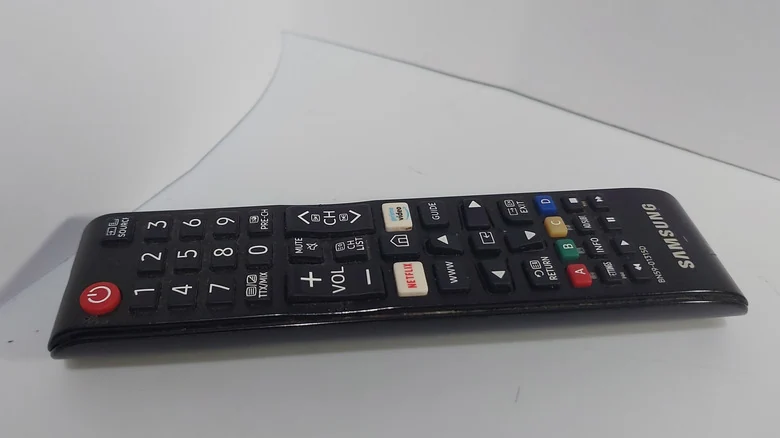
Resetting the Smart Hub and Network Settings
In rare instances, users can benefit from resetting the Smart Hub without executing a full factory reset. This procedure reverts the Hub options back to default settings while wiping associated applications and account information. To do this, choose Device Care, select Self Diagnosis, and enter your PIN, using 0000 if no custom PIN was established.
If you are specifically experiencing connection problems, you can also try resetting network settings. Because connectivity issues typically stem from an internet service provider or a home router, those components should be troubleshot first. However, choosing Reset Network can provide a fresh start, provided you have your router's SSID and password handy to reconnect afterward.
Sources
- EngadgetHow to reset your Samsung TV
Continue chronologically


Related stories
Samsung TVs Use AI for Audio and Ad Tracking
A cybersecurity bounty hunter reverse-engineered a Samsung TV to uncover alarming data collection practices, including audio recording and AI tracking.

What to Look For When Buying a Cheap Android Phone
Discover the essential non-negotiable features you need to look for when shopping for a budget Android phone priced at $300 or less.
Fixing App Scaling Issues on Samsung Galaxy Z Fold 8
Learn how to easily fix scaling and app size issues on your Samsung Galaxy Z Fold 8 by adjusting individual aspect ratios.
Samsung Software Updates in 2026: Which Devices Still Get Them?
Discover which Samsung smartphones, tablets, and wearables still receive software updates in 2026, and learn when older device support ends.