How to Improve Privacy and Security in Google Chrome
Google Chrome collects a significant amount of user data, but you can adjust your browser and account settings to make data collection harder and boost your overall security.
 Radwan AbdulhadiEditor and technology writer

Understanding Chrome Privacy Challenges
Google Chrome stands as the most popular web browser globally, but its massive footprint makes data collection a central part of its operation. Whenever you surf the web, personal information can become a product shared with vendors or exposed through security vulnerabilities. While security features have expanded through developments like Chrome's new fortnightly updates, Google's overall privacy measures often face scrutiny when compared to competitors like Firefox. Because Google's ecosystem collects extensive day-to-day information, including browser history and app usage, users who prefer to stick with Chrome must take proactive measures to safeguard their personal data.

Adjusting Browser-Level Privacy Settings
To begin improving your privacy directly inside the browser, click the three dots in the top right corner of Chrome, select Settings, and navigate to Privacy and security. From here, you should select Third-party cookies and choose Block third-party cookies. Additionally, you can turn on the Do Not Track feature. It is important to note that Do Not Track functions strictly as a request, meaning individual websites can choose whether to acknowledge or ignore the prompt at their own discretion.
Managing Your Google Account Data Controls
Beyond browser menus, additional privacy-specific toggles require attention within your Google profile. Clicking on your Google profile icon and navigating to Manage your Google Account under the Data & privacy section allows you to toggle off Web & App Activity, which limits how much data Google extracts from your usage. Within the same dashboard, you can turn off Timeline to stop location history tracking, as well as Personalize Search to prevent Google from collecting data to tailor search results and AI responses to your activity. To further limit data tracking, users can also turn off personalized ads through My Ad Center.

Leveraging Built-In Security and Safety Check
While privacy controls require deliberate effort, Chrome's security infrastructure is much more robust, incorporating features such as Chrome's Gemini Nano scam protection and proactive scanning systems. To check your current security posture, return to the Privacy and security settings and click on Go to Safety Check. This tool immediately scans for active security issues, highlights password reuse risks, and checks whether your browser requires a software update. Furthermore, Chrome's Safety Check will also constantly run in the background to keep users alerted to emerging threats.

Configuring Safe Browsing Options
The final area to review inside the Privacy and security menu is Safe Browsing. Chrome offers three distinct tiers of protection, with the default Standard protection providing continuous defense against potentially dangerous extensions, downloads, and websites. Users seeking additional protection can enable Enhanced protection to incorporate an AI-powered layer into their web searching. Finally, enabling Always use secure connections ensures that Chrome provides an advance warning whenever you attempt to visit a website that does not support secure connections.
Sources
- EngadgetHow to improve your online privacy and security in Google Chrome
Continue chronologically


Related entity coverage
Related stories
Why Google Chrome Uses So Much RAM and How It Works
Examine how Google Chrome manages system memory, why high RAM usage is often an internet myth, and how built-in tools help handle browser resources.

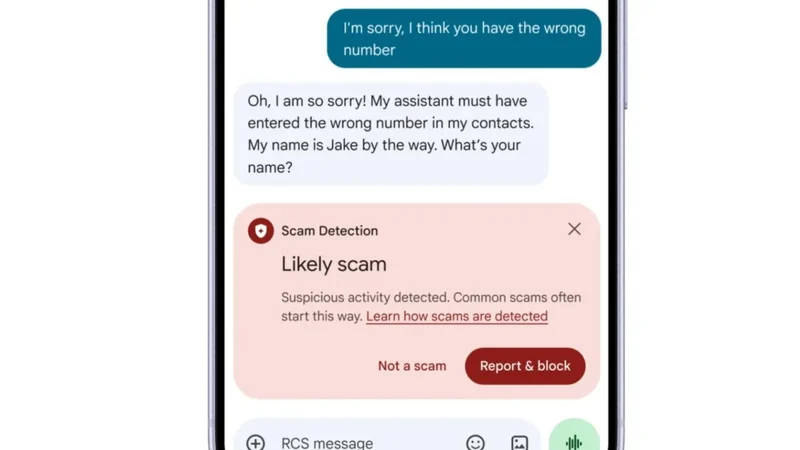
Android Introduces Gemini AI Defenses to Google Messages
Google is bringing cloud-based Gemini AI models and on-device features to Android devices to help users evade mobile fraud and detect scams.
Google Fined €403 Million by Irish Regulator for Privacy Breach
Ireland's Data Protection Commission has fined Google $463 million for mishandling location data in violation of the EU’s strict privacy regulations.

ChatGPT Deepens Chrome Integration With Tab Control
OpenAI has expanded ChatGPT’s Chrome extension, letting the assistant use open-tab context, control tabs, fill forms, and organize browsing.