How to Customize iPhone Camera Control Settings
A closer look at the iPhone's Camera Control feature reveals how tweaking the capacitive button can change your mobile photography workflow.
 Radwan AbdulhadiEditor and technology writer
Understanding iPhone Camera Control
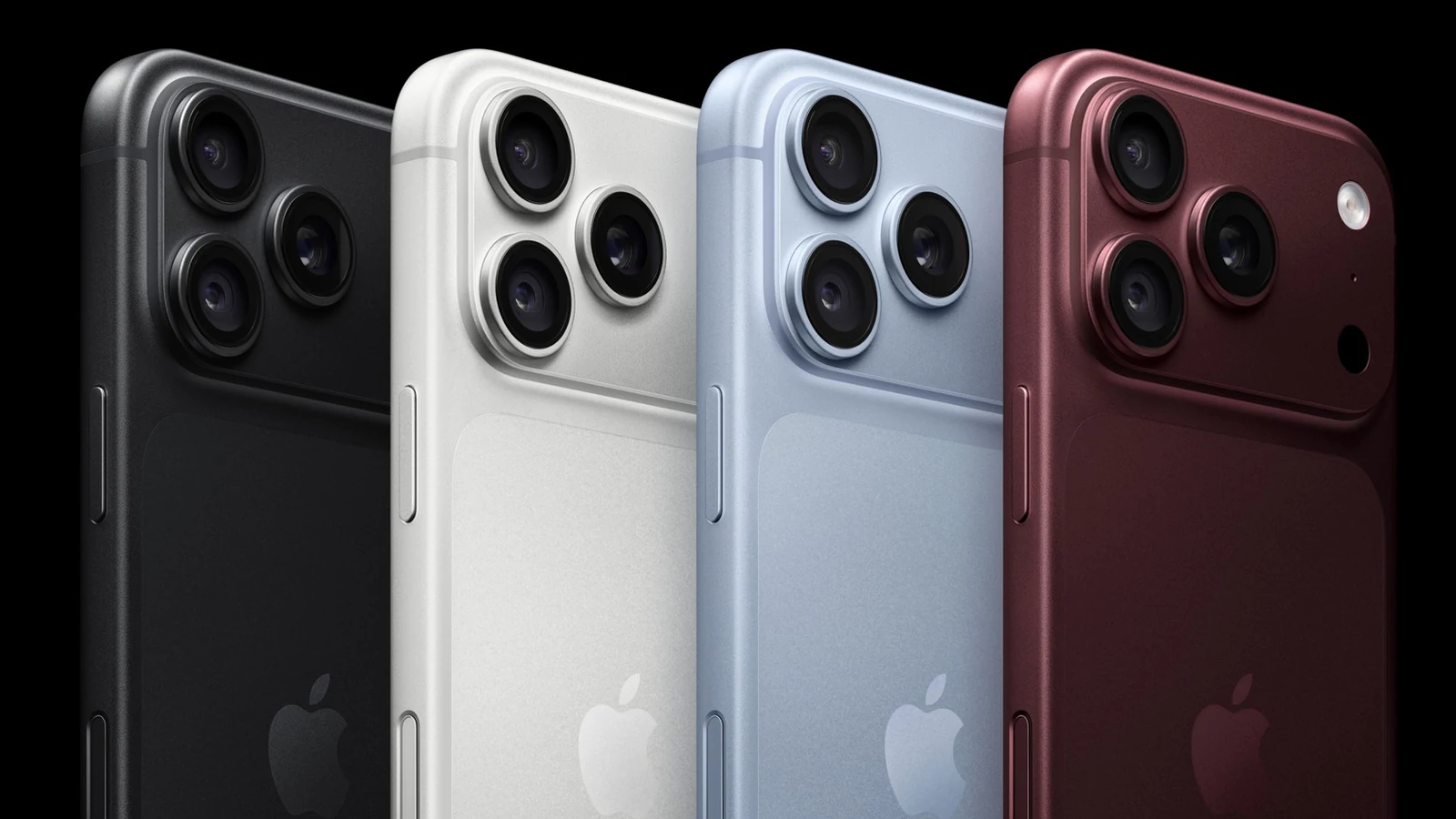
The Camera Control feature on compatible iPhone models refers to the capacitive button located on the right side of the device. Designed to understand a range of gestures—including single-clicks, double-clicks, and swipe gestures—it allows users to open the camera, take pictures, record videos, and work with advanced photography settings on your iPhone . Further details are available from Engadget in the original source material.
Perfect for one-handed photography, the button's default setup includes swiping to use different photography tools like exposure or zoom, and double-clicking to launch Visual Intelligence, which enables users to use the camera to ask Siri questions about their surroundings.
Changing Launch Options and Controls
Users can modify these default behaviors by navigating to Settings > Camera > Camera Control. This menu reveals several configuration options, with Launch Camera and Controls serving as the two primary sections to explore first.
Within the Launch Camera section, tapping Camera lets you choose which supported application opens when the button is pressed. Available options depend on installed apps and can include Instagram for instant story creation, Code Scanner for QR codes, or Magnifier to turn the device into a digital magnifying glass. Third-party applications may also appear, though some could remain grayed out until full support is established.
Configuring Camera Adjustments and Gestures
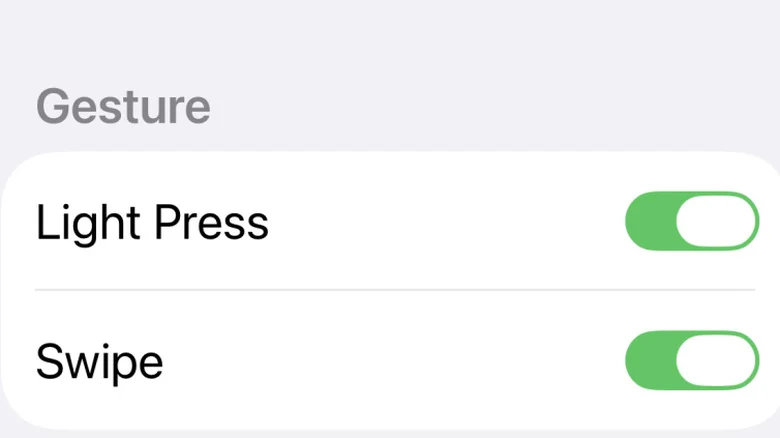
The Controls section houses various features, including Camera Adjustments. Activating this option makes the button significantly more functional by allowing light presses or swipes while the Camera app is active to explore various camera options and adjustments.
The Customize menu lets users decide which gestures are supported in that mode. It also permits enabling or disabling six potential adjustments. Users can tap to toggle ticks beside functions or press and hold the burger icon featuring three horizontal lines to rearrange items into a preferred order, which dictates how swiping functions during future photo sessions.
Additional Settings and Accessibility Customizations
Beyond the primary camera settings, the button configuration menu offers several extra toggles. Single Click or Double Click options can be adjusted, with double clicks helping prevent accidental camera activations. A Require Screen On toggle prevents the camera from launching unintentionally while the device is locked, and Lock Focus and Exposure maintains focus parameters as long as the button remains touched.
Further customization is available by visiting Settings > Accessibility > Camera Control. This specific path allows users to disable the button completely or adjust the force and speed required to trigger a response, with choices available between Default, Slow, and Slower settings.
Sources
- EngadgetHow to customize Camera Control on your iPhone
Continue chronologically
Related entity coverage
Related stories
How to Use the iPhone Voice Memos App for Audio Recording
Learn how to capture high-quality audio on your iPhone using the built-in Voice Memos app, featuring tips on transcription, editing, and multitrack recording.
Apple Opens Claims Process for $250 Million Siri AI Settlement
Eligible US iPhone owners can now file claims for the $250 million settlement regarding delayed AI features. Find out if you qualify for a payout.
Does Apple’s Safari Browser Actually Protect iPhone Privacy?
Apple's Safari browser offers built-in privacy protections, but how effective are they? We examine the limitations and security realities of mobile browsing.
Why the iPhone Does Not Support Wired Printer Connections
Explore why iPhones lack native wired printing support, how Apple's design decisions affect older hardware, and what wireless workarounds exist.