Most Windows Users Are Underusing Virtual Desktops
Windows features a powerful, built-in tool that allows users to create multiple virtual desktops for better multitasking, organization, and focus.
 Radwan AbdulhadiEditor and technology writer
Maximizing Productivity with Virtual Desktops
Many computer users overlook a variety of useful built-in features offered by the operating system, ranging from clipboard history to deeper customization options. According to Engadget, one of the best tools that many individuals fail to utilize is the ability to create multiple desktops. As highlighted in a report discussing how to use multiple desktop windows, virtual desktops serve as a great productivity tool that segments your computer setup into specialized sections, helping you stay organized and focused.
Users can approach this segmentation broadly, such as establishing separate desktops for work and personal activities. Alternatively, individuals can get more granular by creating dedicated spaces for various tasks like editing, spreadsheets, meetings, or specific clients. Although all programs remain accessible across all desktops, the intentional way you choose to segment them dictates their effectiveness. This functionality is readily available across both versions of Windows 11 as well as Windows 10, and setting it up requires minimal effort.
How to Create and Customize Desktops
Creating new virtual desktops within the operating system is a straightforward process. Users can hover over the Task View icon or press the Windows and Tab keys together. Additionally, pressing Windows, Ctrl, and D allows for the rapid creation of a new desktop.
Once the desired number of desktops is established, each one can be customized for easier identification. By hovering over the Task View icon or pressing Windows and Tab, users can right-click the specific desktop to rename it or assign a unique wallpaper. Note that the unique wallpaper feature is restricted to Windows 11.
Navigating and Managing Multiple Workspaces
Switching between desktops can be accomplished through the Task View icon or by utilizing the Windows, Ctrl, and Left or Right arrow keys to cycle through them. For accelerated navigation, users can change the positioning of each desktop inside Task View by right-clicking one and selecting move right or move left, or by dragging them directly at the bottom of the screen.
When a program needs to be relocated from one workspace to another, users can simply drag and drop an open window into a different desktop via Task View. Desktops that are no longer needed can be closed by clicking the X in the top-right corner within Task View, or by pressing Windows, Ctrl, and F4.

Best Practices for Workspace Segmentation
To achieve optimal results, experts recommend dedicating each desktop to a singular, specific purpose to prevent confusion. Users might consolidate music, chat, and social applications onto one desktop, keeping potential distractions away from work applications like email clients or spreadsheets. Utilizing built-in application features, such as browser profiles, can further assist in maintaining logical separation between tasks.
If you have a single monitor, setting up virtual desktops acts as a reliable method to effectively gain more screen real estate without purchasing additional hardware, helping you organize open windows efficiently.
Optimizing Settings and Enhancing Functionality
Users can extract even greater value from a multi-desktop setup by adjusting some settings in Windows. Specifically, optimizing the taskbar and Alt and Tab functionalities across multiple environments allows users to choose whether open windows and switching options appear exclusively on the active desktop or across all connected desktops.
For individuals managing numerous distinct workspaces who often experience difficulty navigating or differentiating them, external resources can help. A small free program called Windows Virtual Desktop Helper, hosted on GitHub, provides the option to display a desktop's name prominently upon switching, shows the active desktop in the system tray, and allows for custom navigation hotkeys.
Sources
- EngadgetMost Windows users are seriously underusing this powerful desktop feature
Continue chronologically

Related entity coverage
Related stories
Microsoft: Unsupported Windows Devices to Lose Security Updates
Microsoft warns that outdated Windows devices running unsupported versions will stop receiving security updates after upcoming certificate rotations.
Microsoft Issues OOB Windows Updates to Untrust eMudhra
Microsoft releases out-of-band Windows updates to remove trust in certificates tied to compromised eMudhra keys for offline and restricted systems.
Windows 11 Tests New Shortcuts and Search Features
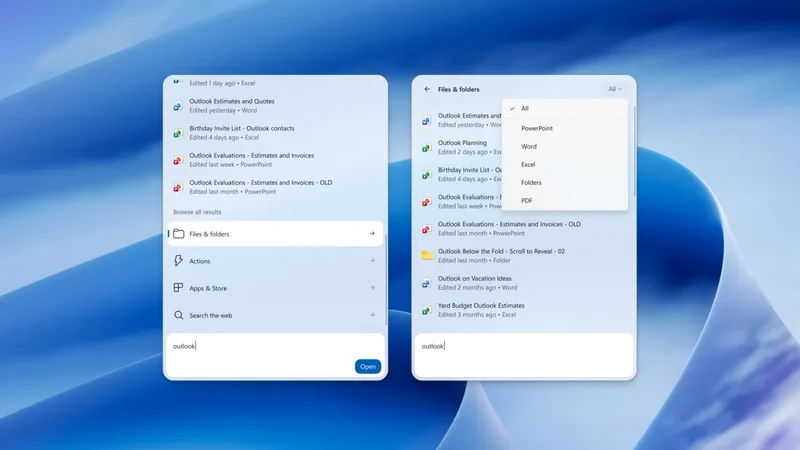
Microsoft is testing new Windows 11 Insider builds featuring Xbox gaming mode shortcuts, comprehensive search filters, and phone controls.
Windows 11 right-click menu and Cloud Rebuild preview update
Microsoft rolls out a Windows 11 preview update featuring right-click menu customization and Cloud Rebuild, alongside declining PC revenue.