
How to Turn Your Old Windows PC Into a Chromebook for Free
As older operating systems reach their end-of-life, Google's ChromeOS Flex offers a practical path to keep aging hardware functional and secure.
 Radwan AbdulhadiEditor and technology writer
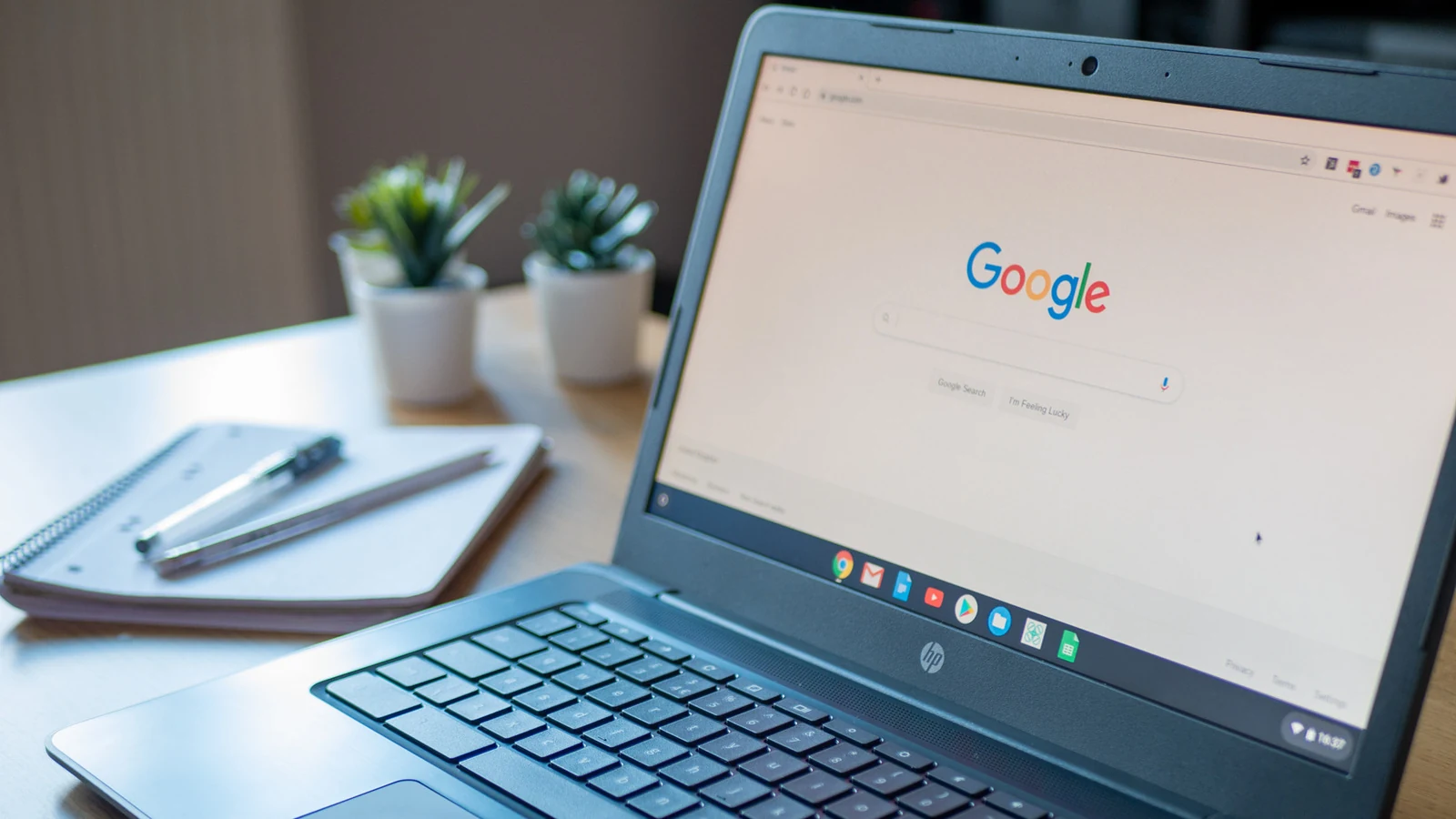
Giving New Life to Aging Hardware
For many users, the end of support for a primary operating system signals that it is time to purchase a new device. With the reality that Windows 10 reached its end of life in October 2025, many users are currently facing hardware obsolescence. Similarly, Apple users are navigating a shift as macOS 27 dropping support for Intel Macs limits the longevity of older machines. However, software depreciation does not necessarily render the underlying hardware useless.
Google provides a solution for these aging devices through ChromeOS Flex. This lightweight operating system is designed to perform efficiently on hardware that might struggle with the resource requirements of modern Windows installations. Since the time when Google introduced ChromeOS Flex, the platform has served as an official method for users to convert their own hardware into a Chromebook-like environment.
System Requirements and Preparation
Before beginning the transformation, users must ensure their hardware meets the necessary specifications. The system requires an Intel or AMD processor, a minimum of 4GB of RAM, and 16GB of internal storage. It is important to note that hardware from 2012 or earlier generally lacks support for newer versions of the operating system. While there is a list of ChromeOS Flex-certified models available for reference, uncertified hardware may still successfully run the operating system.
To prepare the installation media, a USB flash drive with at least 8GB of capacity is required. Because the creation of this media will completely wipe the contents of the USB drive, users should ensure no important data remains on the device. Furthermore, the process necessitates an existing functional computer with a web browser to download Chrome if needed and to install the official recovery extension.
The Installation Process
The creation of the installation media is managed through the Chromebook Recovery Utility. Once the extension is added to the browser, the user can follow the prompts to select Google ChromeOS Flex as the target operating system. After the utility finishes preparing the USB drive, it must be inserted into the target computer, which must then be booted into its BIOS or boot menu. Depending on the machine, this typically involves pressing keys such as F10, F12, or Del during the startup sequence.
Once the computer boots from the USB drive, the user is presented with an option to either test the operating system or perform a full installation. While testing allows the user to verify hardware compatibility, it does not save data across sessions. Proceeding with the installation will erase all existing data on the computer's hard drive, making a pre-installation backup essential. Once completed, the USB drive can be removed, and the system will be ready for primary use.
Operational Considerations and Limitations
While ChromeOS Flex effectively revitalizes older computers, users should be aware of several functional differences compared to a standard Chromebook. The operating system does not support the Google Play Store or the Android virtual machine, meaning users cannot access typical Android applications. For advanced users, Linux support may be enabled, though software management is primarily conducted via the command line.
Additionally, the lack of dedicated security hardware found in native Chromebooks prevents the use of biometric authentication or PIN logins. Users are required to enter their full Google account password every time they log in. While the experience is optimized for web-based tasks, the software support for individual hardware configurations will eventually reach its end, as defined by Google’s support windows.
Sources
- EngadgetHow to turn your old Windows PC into a Chromebook for free