Which Samsung S Pens Can Be Tracked with SmartThings Find?
While several Samsung Galaxy devices feature built-in stylus slots and reminders, only one specific S Pen model officially supports tracking through the SmartThings Find network.
 Radwan AbdulhadiEditor and technology writer
Understanding S Pen Tracking Limitations
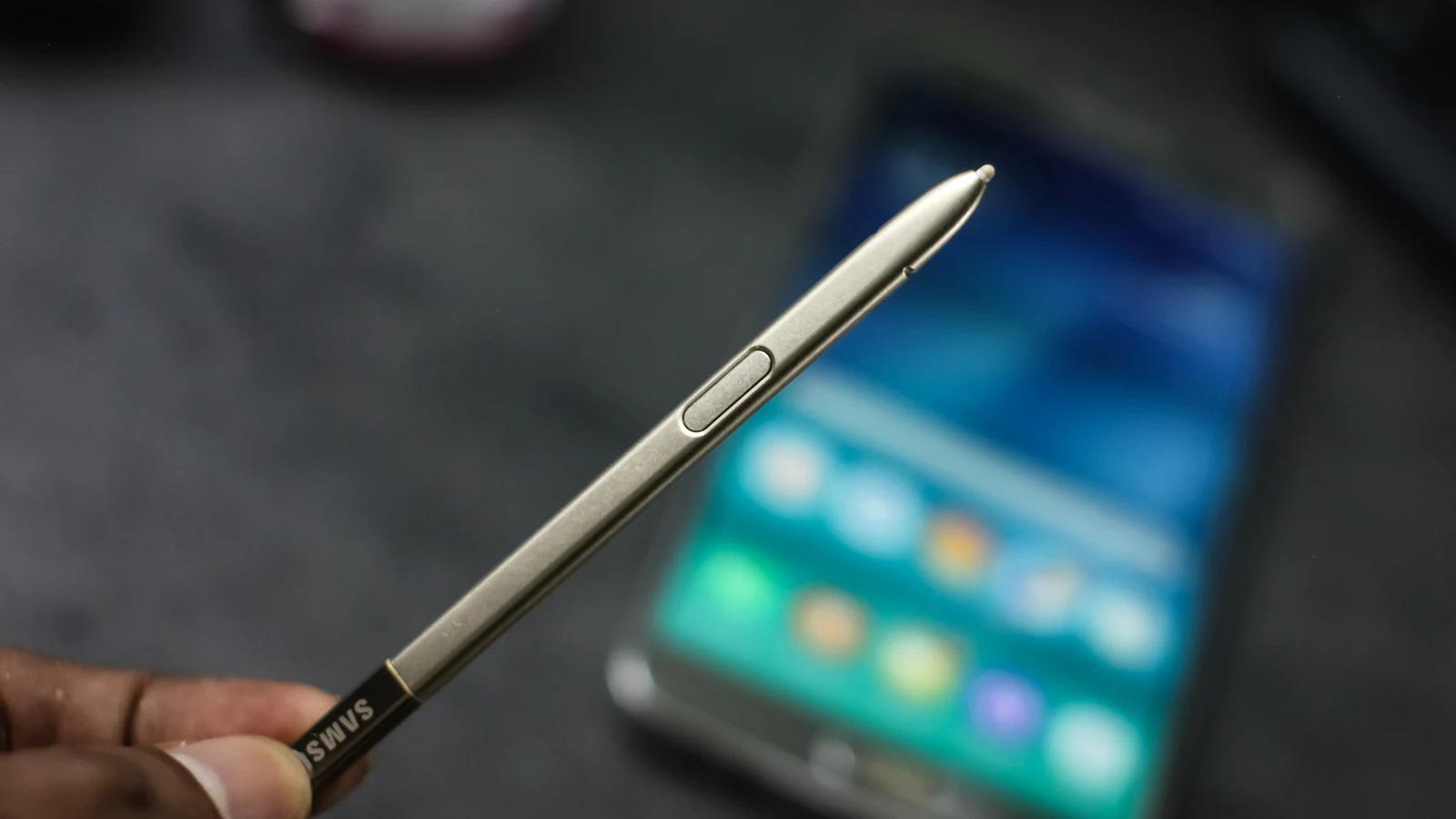
Your Galaxy phone might warn you about a missing S Pen, but finding its exact location is a different story. If you leave your Galaxy S26 Ultra's S Pen behind in an office meeting room, the phone can warn you it hasn't been returned to its slot. However, this notification functions merely as a helpful reminder rather than a precise tracking feature, meaning it cannot tell you where inside the room the stylus might be hiding.
Samsung has utilized the S Pen moniker for a diverse range of styluses over the years, spanning battery-free pens for older Galaxy Note models, Bluetooth-enabled variants, and larger accessories tailored for tablets and foldables. Despite this wide variety, only one official model works seamlessly with the SmartThings Find ecosystem for location tracking.
The S Pen Pro and SmartThings Find Compatibility
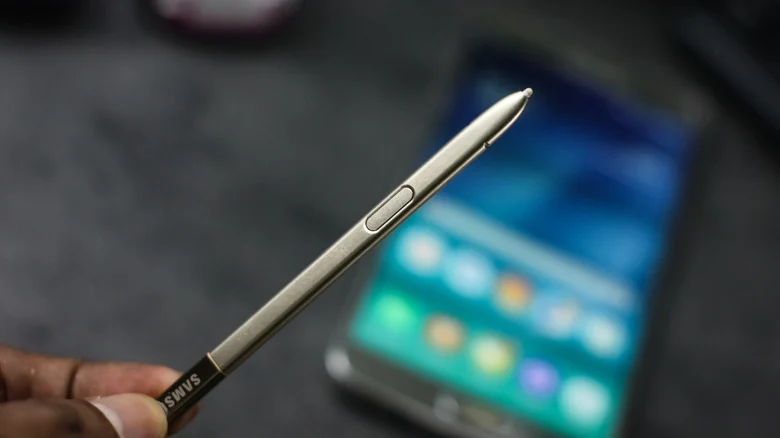
The S Pen Pro is the sole stylus officially supported by Samsung for tracking via SmartThings Find. Samsung initially unveiled it alongside the Galaxy S21 Ultra, after which the tech giant introduced S Pen support to the Galaxy S21 Ultra in 2021 before releasing the accessory later that year alongside the Galaxy Z Fold 3 and Z Flip 3.
Sold separately for $100, the S Pen Pro is a larger, rechargeable stylus equipped with a USB-C port beneath its cap, a dedicated pairing button, and a switch designed for compatible Galaxy hardware. Compatible phones encompass the Note 10 and Note 20 series, the Galaxy S21 Ultra through the S26 Ultra, and Z Fold models ranging from the Z Fold 4 through the Z Fold 6. A notable design drawback, however, is that the accessory is too large to fit inside the built-in storage slot of the Galaxy S26 Ultra.
Why Bluetooth Does Not Guarantee Tracking
Many users mistakenly assume that Bluetooth connectivity automatically grants tracking capabilities. In 2018, Samsung integrated Bluetooth into the S Pen for the Galaxy Note 9 to let users remotely trigger the camera and manage specific applications, with similar features later transitioning to subsequent Note iterations as well as the Galaxy S22, S23, and S24 Ultra models.
Despite these advanced capabilities, none of those built-in styluses can be located using SmartThings Find. Samsung subsequently removed Bluetooth connectivity entirely from the S25 Ultra's S Pen, a design choice carried forward into the S26 Ultra. Tablet options vary as well; while select Galaxy Tab S pens support Air Actions via Bluetooth, variants like the Tab S9 FE pen, the S Pen Fold Edition, and the Creator Edition entirely lack Bluetooth functionality and SmartThings Find support.
Configuring SmartThings Find for the S Pen Pro
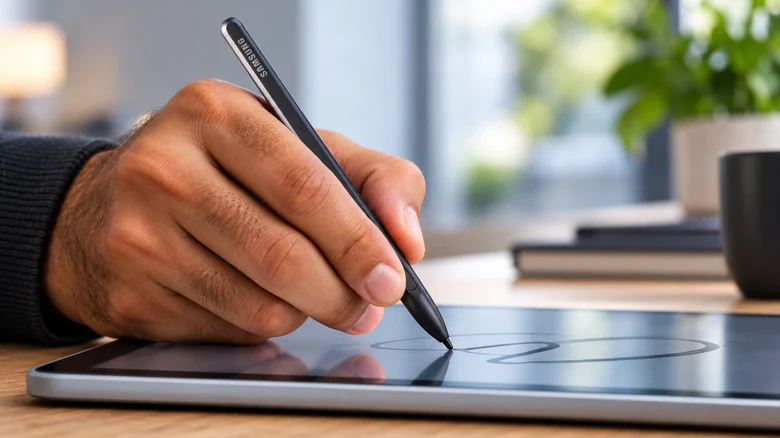
Preparing the S Pen Pro for location tracking requires a few initial configuration steps. Users must charge the stylus, choose the correct mode, and hold down its Connection button for a duration of three seconds. Once prompted, tapping Connect while signed into a valid Samsung account completes the initial setup phase.
Next, users need to open the SmartThings application, navigate to Life, select Find, and open the three-dot menu. From there, choosing Settings followed by Allow devices to be found enables Offline finding. Because this feature must be active beforehand, users should configure it well before misplacing the device.
Locating a Missing S Pen Pro
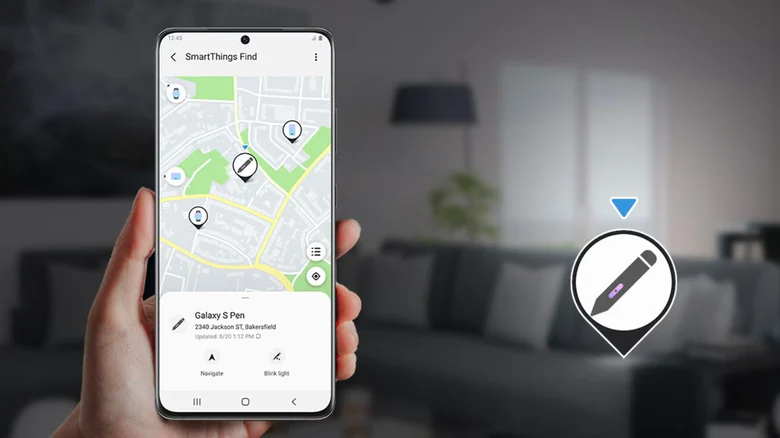
When searching for a misplaced S Pen Pro, users can launch SmartThings, go to Life, select Find, and choose the S Pen Pro from the available device cards or menu. Tapping Refresh updates its geographic position on the map interface. Selecting More and Navigate provides directional guidance, while swiping up on the details card exposes the Blink light function to flash its physical indicator when searching nearby areas. Additionally, the standalone Samsung Find application lists the stylus under its Devices tab.
Participating nearby Galaxy phones or tablets equipped with offline finding can autonomously detect a powered-on S Pen Pro via Bluetooth and anonymously relay its position back to Samsung without requiring an active pairing. For built-in styluses lacking full tracking, users can consult device settings for separation alerts, while replacement S Pens remain available for purchase if an unrecoverable loss occurs.
Sources
- EngadgetWhich Samsung S Pens can be located using SmartThings Find?
Continue chronologically
Related stories
Galaxy S26 Ultra Named Among Best Inventions of 2026
The Samsung Galaxy S26 Ultra earns a spot on Time's best inventions of 2026 list, credited for its innovative Privacy Display feature.
Samsung Confirms Galaxy Devices Set for Android 17 Update
Samsung has confirmed a regional list of Galaxy smartphones and tablets scheduled to receive the Android 17-based One UI 9 update.
Samsung Galaxy S26 Ultra Drops to $950 After Prime Day
The Samsung Galaxy S26 Ultra with 256GB storage is heavily discounted to $949.99 following Prime Day, offering massive savings on the flagship device.
Finding the Closest Android Counterpart to iPhone 18 Pro Max
Explore which Android smartphones truly compete with the iPhone 18 Pro Max in hardware performance, software refinement, and broad market availability.