Managing User Role Downgrades in Amazon Quick
Amazon Quick features specific user management procedures for administrators looking to enforce the principle of least privilege and optimize subscription costs.
 Radwan AbdulhadiEditor and technology writer

Understanding User Lifecycle Management
Managing access permissions effectively is an important aspect of maintaining a secure and collaborative environment in Amazon Quick. Quick supports versatile user management options designed to accommodate various identity types and organizational needs. You can provision users natively through Quick Identity or manage them through enterprise identity providers such as AWS IAM Identity Center or Active Directory. These systems allow user roles including Admin, Author, and Reader to be assigned and grouped according to job functions and security requirements. As team members join, change roles, or leave the organization, administrators must make sure transitions happen smoothly without disrupting business workflows or creating security gaps.
Regular access reviews are important for maintaining security in your Quick environment. Plan monthly or quarterly audits of user roles to confirm everyone has appropriate permissions. When team members’ responsibilities change, proactively transfer ownership of their dashboards and analyses to prevent orphaned resources. This practice, recommended in the AWS Well-Architected Framework, helps maintain continuity for business-critical visualizations.
Security and Cost Optimization Drivers
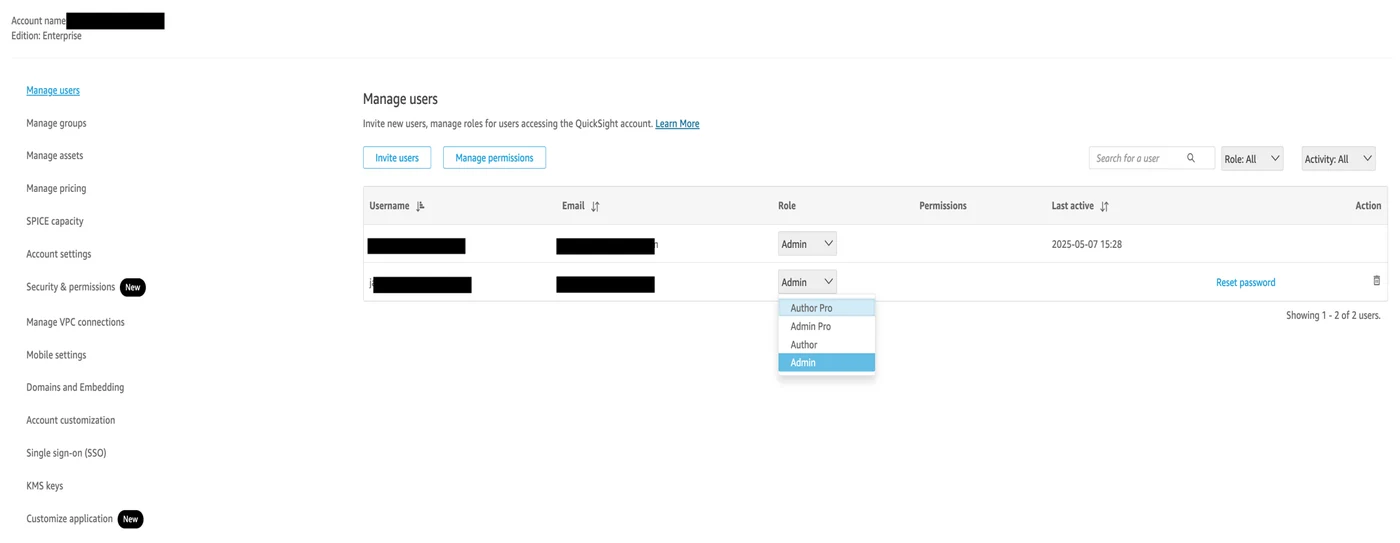
The principle of least privilege applies strongly to Quick administration. Users should have access only to what they need for their specific job functions. Downgrading user roles is a key part of enforcing least privilege. When a user’s responsibilities no longer require authoring or administrative capabilities, reduce their role accordingly to minimize the security surface area.
Quick pricing is also role-based: Authors and Admins pay a fixed monthly per-user fee, while Readers use session-based pricing. Organizations with users provisioned as Authors who only consume dashboards can reduce costs substantially by right-sizing them to Reader roles. For current pricing details, see the Amazon Quick pricing page.
For more granular control beyond the built-in roles in Amazon Quick, consider complementing role assignments with Custom Permissions, which restrict specific capabilities within a role tier. The integration of Amazon Quick with AWS Identity and Access Management (IAM) provides additional permission boundaries that complement the basic role system.
Addressing Identity Types and Console Limitations
Although the exact steps depend on the user identity type, this official guidance primarily addresses Amazon Quick Identity users, also referred to as Quick-managed users. Users authenticated through IAM Identity Center or Active Directory typically have role changes managed through their external identity provider group mappings. If your environment uses IAM Identity Center, role downgrade is handled by moving the user from one IdC group to another, such as shifting from a Quick-Admins group to a Quick-Readers group, meaning no step-down sequence is required.
Although the Amazon Quick console doesn’t provide a direct downgrade path for all role transitions—specifically, you cannot downgrade from Admin to Reader or from Author to Reader directly through the console interface—two reliable solutions exist: a manual deletion-and-recreation method, and an approach that uses the AWS Command Line Interface (AWS CLI).
The console does not provide a direct way to downgrade from any Author tier to any Reader tier. The update-user API enforces this same constraint, rejecting direct downgrades with a error message stating that you cannot downgrade a user role.
Executing Role Transitions via AWS CLI
Before beginning the transition process, make sure you have an active AWS account with administrator access to Amazon Quick. If you plan to use the CLI method, you need the AWS CLI installed and configured on your machine. It is also helpful to prepare a list of users whose roles need changing.
The CLI step-down method works reliably for legacy BI-only roles including Admin, Author, and Reader, following a specific sequence. This sequence also works for Pro users as long as intermediate steps utilize legacy roles, such as moving from Author Pro to Author, then to Restricted Reader, and finally to Reader Pro.
When implementing role changes through either method, verify that all users in your list are currently Admin or Author users before making changes, as attempting to downgrade users who already have lower permissions might cause errors. For larger organizations using the CLI method, consider loading user email addresses from a CSV file rather than hardcoding them.
Preserving and Reassigning Asset Ownership
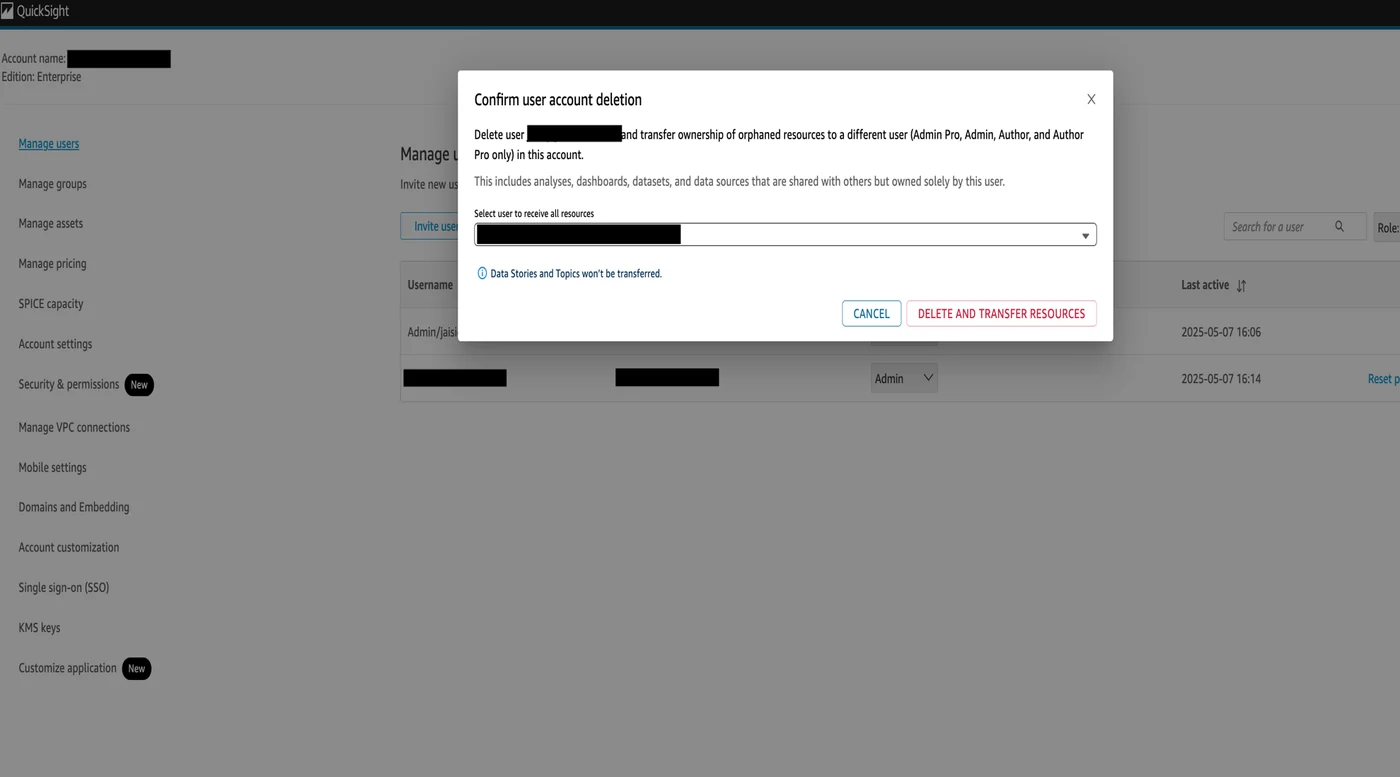
Before deleting a user, it is essential to make sure that any assets they own, such as dashboards, datasets, and analyses, are properly reassigned. This prevents disruptions and avoids leaving resources orphaned. If the user is an Author, verify whether they own any datasets or dashboards, and follow asset reassignment steps.
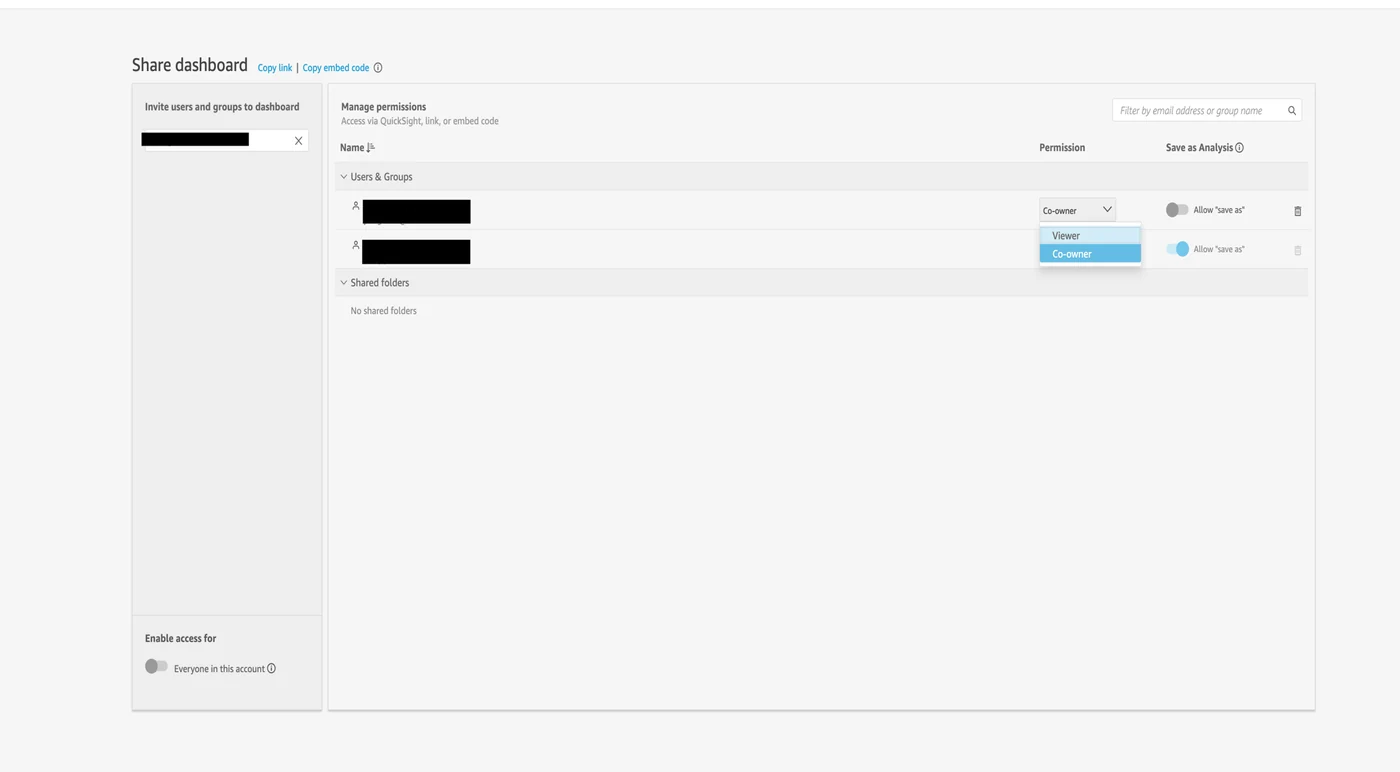
Option one involves proactively transferring ownership to another admin by manually going into each asset in Quick, choosing Share, and assigning another admin as a co-owner. This method gives you exact control over who takes over each resource, which is particularly useful for high-impact dashboards or datasets.
Alternatively, if the user owns many assets, administrators can use the bulk asset transfer features available in the administration section of Quick to streamline the reassignment process across multiple items simultaneously.
Sources
- AWS Machine Learning BlogDowngrading user roles in Amazon Quick
Continue chronologically

Related entity coverage
Related stories
Amazon Quick Adds Live Data Support for AI-Built Apps
Amazon Quick introduces Live Data in Apps, allowing AI-built web applications to query governed datasets in real time instead of using static snapshots.

AWS Details Component Patterns for Amazon Quick Prompting
Discover component-specific prompt engineering patterns and pitfalls for Amazon Quick Research, Quick Flows, Quick Sight, and chat agents.

AWS details prompt engineering basics for Amazon Quick
AWS outlines foundational prompt engineering principles and frameworks like CRISPE to optimize AI responses in Amazon Quick for enterprise users.

Sweep Thousands of Leases Using Amazon Quick and Adjudicated Query
Learn how the Adjudicated Query pattern pairs Amazon Quick with a deterministic rules engine to sweep thousands of leases for compliance.