Manage SageMaker HyperPod Spaces Directly from Studio
Amazon Web Services has introduced a visual interface within Amazon SageMaker Studio that enables data scientists and machine learning engineers to manage interactive development environments on Amazon SageMaker HyperPod EKS clusters without relying on command-line tools.
 Radwan AbdulhadiEditor and technology writer
Streamlining HyperPod Space Management in Studio
Data scientists and machine learning engineers can now create, configure, start, stop, and open Amazon SageMaker Spaces directly from the Amazon SageMaker Studio user interface. Instead of utilizing command-line tools, teams can launch JupyterLab and Code Editor environments on Amazon SageMaker HyperPod EKS clusters in a few clicks, significantly reducing the friction between accessing cluster infrastructure and beginning productive model development.
This capability builds upon Amazon SageMaker Spaces for HyperPod, an add-on introduced earlier this year that allows developers to establish interactive development environments straight on HyperPod EKS clusters. Organizations can leverage fractional GPU allocations to run interactive workloads alongside training jobs and model deployments on the same underlying infrastructure.
Visual Interface and Core Studio Capabilities
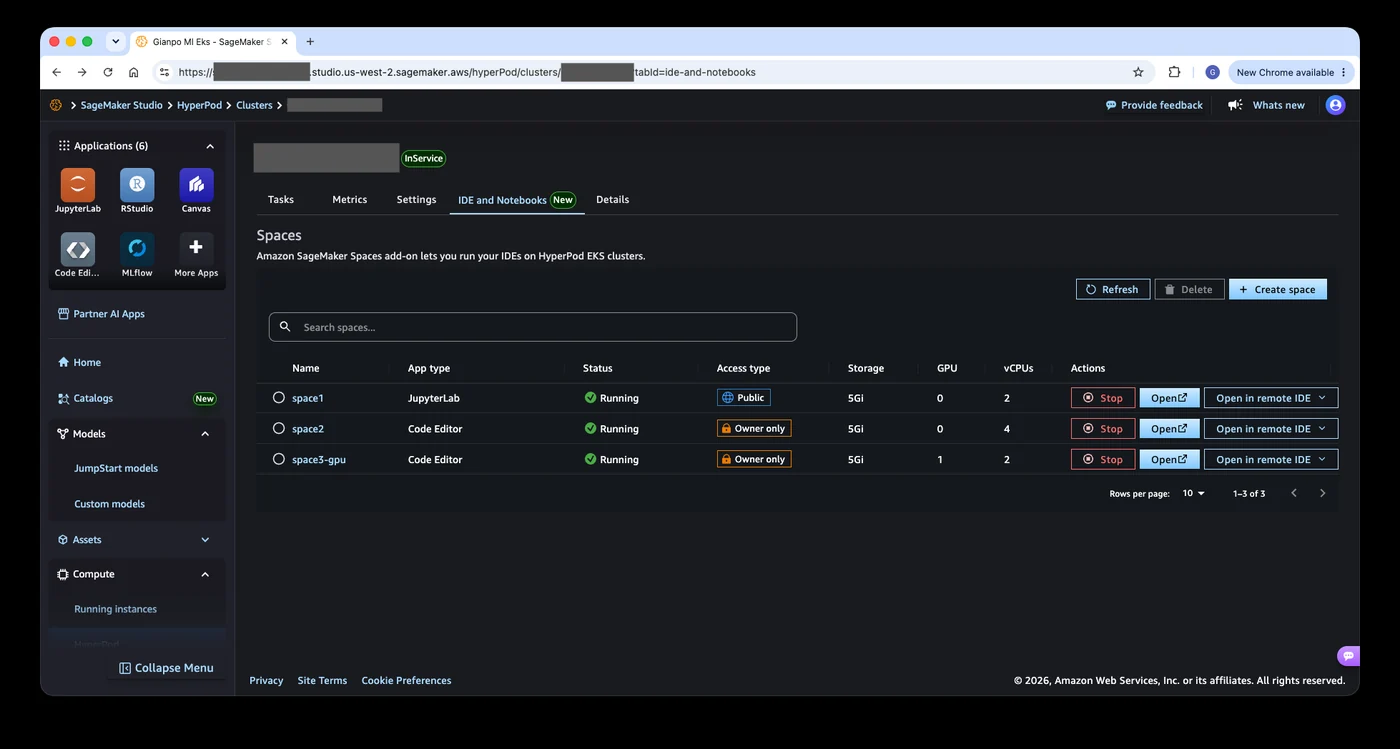
Previously, managing and creating Spaces relied heavily on the HyperPod CLI or kubectl commands. While those command-line methods offer granular and powerful control for infrastructure administrators, the new capabilities inside SageMaker Studio provide a dedicated visual workspace. A new IDE and Notebooks tab on the HyperPod cluster detail page acts as a centralized interface for all day-to-day operations.
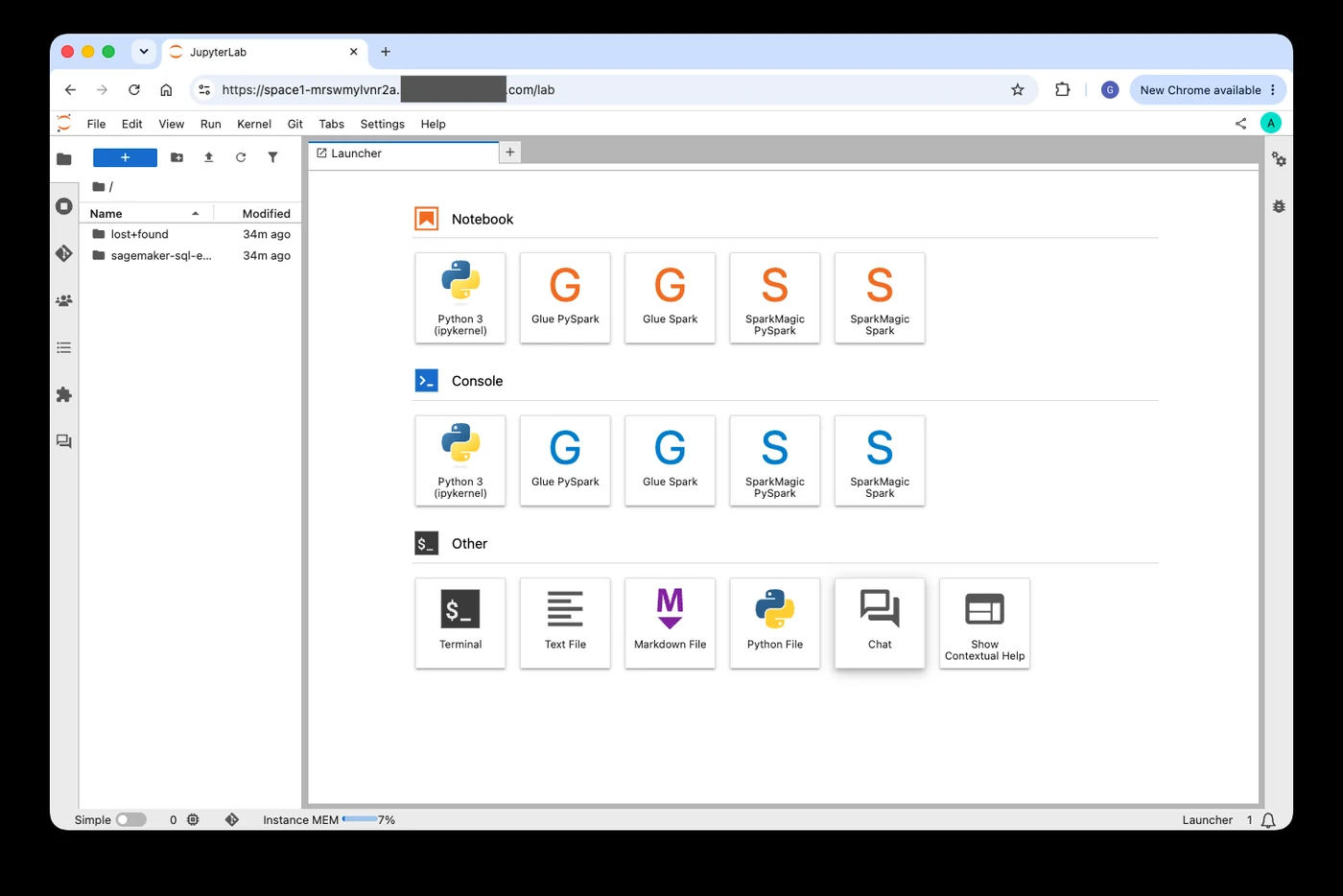
Through a guided form in Studio, users can configure compute resources, namespaces, storage, image settings, and HyperPod Task Governance for compute quota management. Furthermore, a searchable table lists all active Spaces alongside their application types, status, access types, storage allotments, and vCPU or GPU allocations. Users can launch JupyterLab or Code Editor directly in their browser or connect securely using a remote IDE like VS Code.
Administrator Setup and Cluster Configuration
Deploying and enabling this functionality involves a structured workflow divided between administrators and data scientists. Administrators must first install the necessary software add-on on the target cluster. They can choose between a Quick install option with optimized defaults or a Custom install option, which is mandatory if they intend to configure web user interface access.
Once the add-on is active, administrators must configure EKS access entries by attaching the required managed policies to the IAM roles utilized by data scientists. For older Studio domains created prior to this integration rollout, administrators must also enable per-user identity propagation to map individual user actions properly within AWS CloudTrail and enforce strict Space ownership.
Interactive Development Environments and Persistence
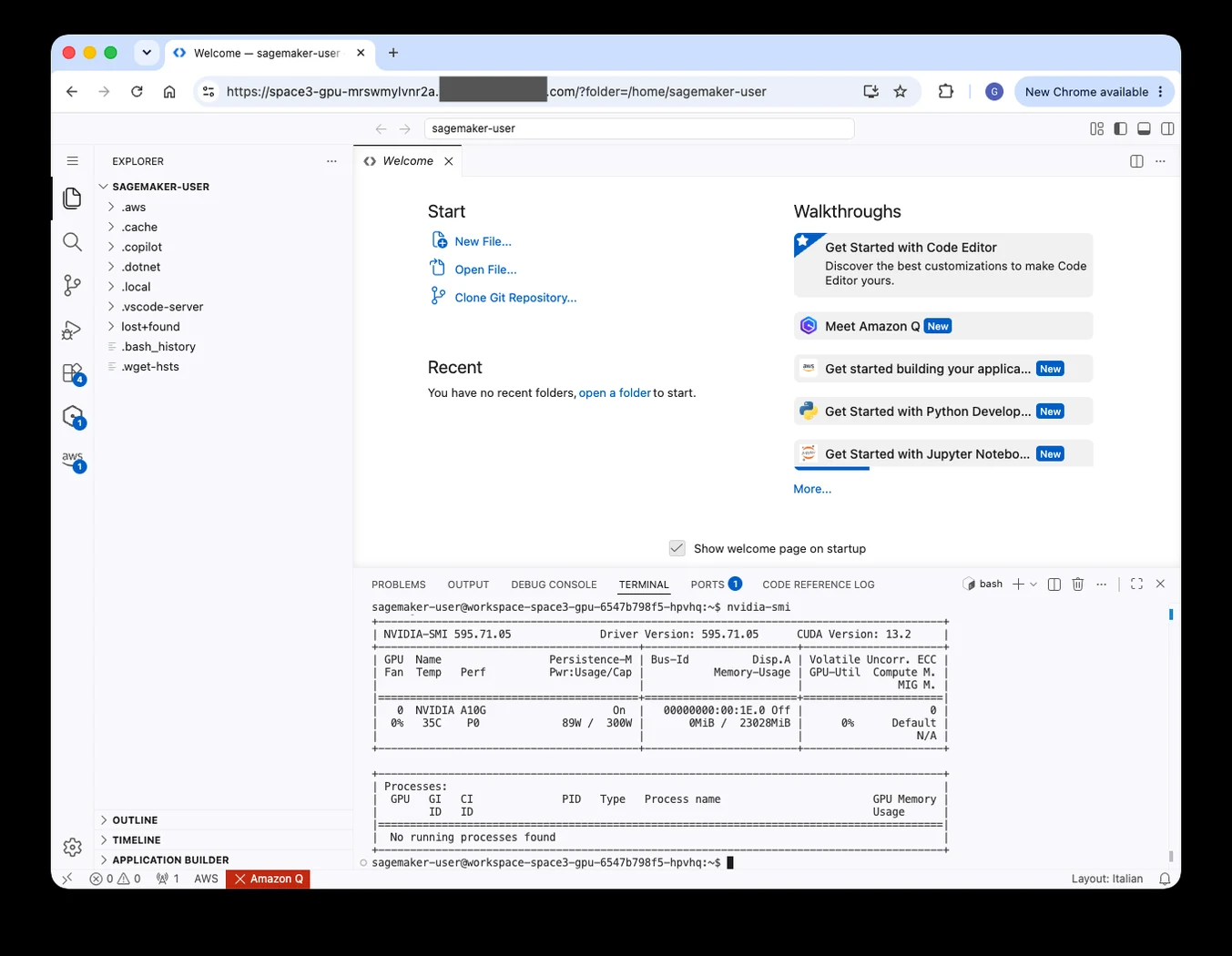
After the initial administrative configuration is complete, data scientists can navigate to their HyperPod cluster inside SageMaker Studio under the Compute section. Once a Space status transitions to running—which typically takes a few minutes or seconds depending on cluster configuration and node overprovisioning—developers can open their chosen environment.
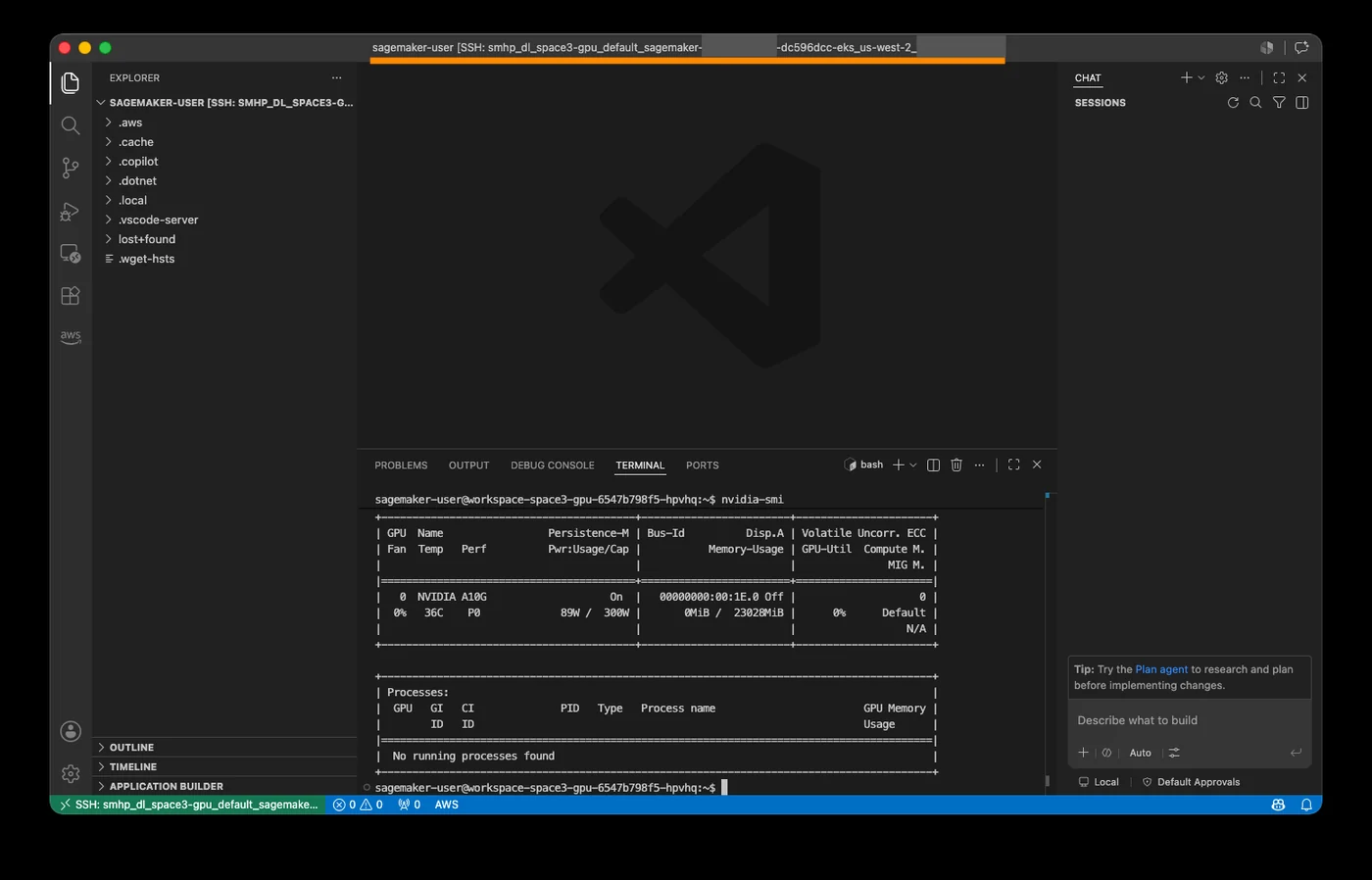
User work persists automatically on attached Amazon Elastic Block Store volumes, meaning developers can safely stop and restart their Spaces without losing ongoing progress. Code Editor Spaces offer a lightweight, web-based integrated development environment featuring full file editing, an integrated terminal, syntax highlighting, IntelliSense, and Git integration for version control workflows.
Sources
- AWS Machine Learning BlogManage Amazon SageMaker HyperPod Spaces directly from SageMaker Studio
Continue chronologically


Related entity coverage
Related stories
AWS Launches Amazon SageMaker HyperPod Inference Gateway
Amazon introduces the SageMaker HyperPod Inference Gateway, a GPU-aware routing add-on for EKS designed to slash inference latency for LLM deployments.
AWS Introduces aws-ai-ml Skill for Coding Agents
Amazon SageMaker AI introduces the aws-ai-ml skill via Agent Toolkit for AWS, equipping coding agents like Kiro and Claude Code with inference optimization.
Condé Nast Builds Multimodal Video Discovery with AWS
Condé Nast partnered with the AWS Generative AI Innovation Center to build an AI-powered multimodal video discovery solution on Amazon Bedrock.
AWS Details Multi-Agent Cloud Migrations on Bedrock AgentCore
AWS Professional Services details a multi-agent framework on Amazon Bedrock AgentCore to automate enterprise cloud migrations and reduce IaC time.