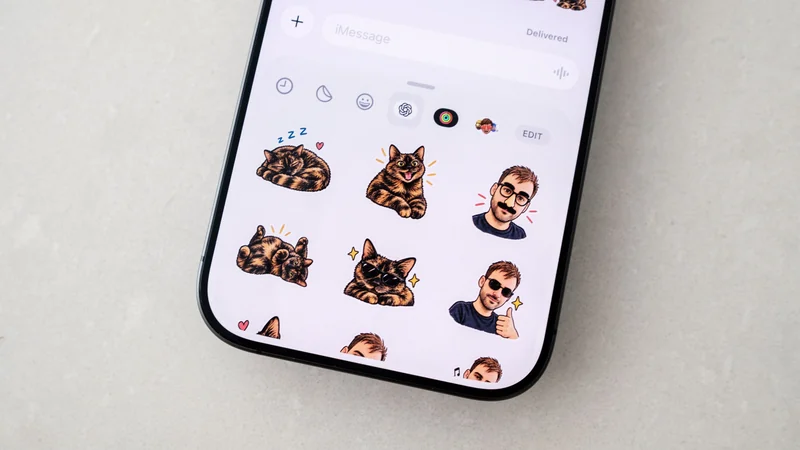
How to disable or restrict Apple Intelligence on your iPhone
As Apple integrates artificial intelligence deeper into its default software, users gain granular controls to disable or restrict specific Apple Intelligence functions across the operating system.
 Radwan AbdulhadiEditor and technology writer
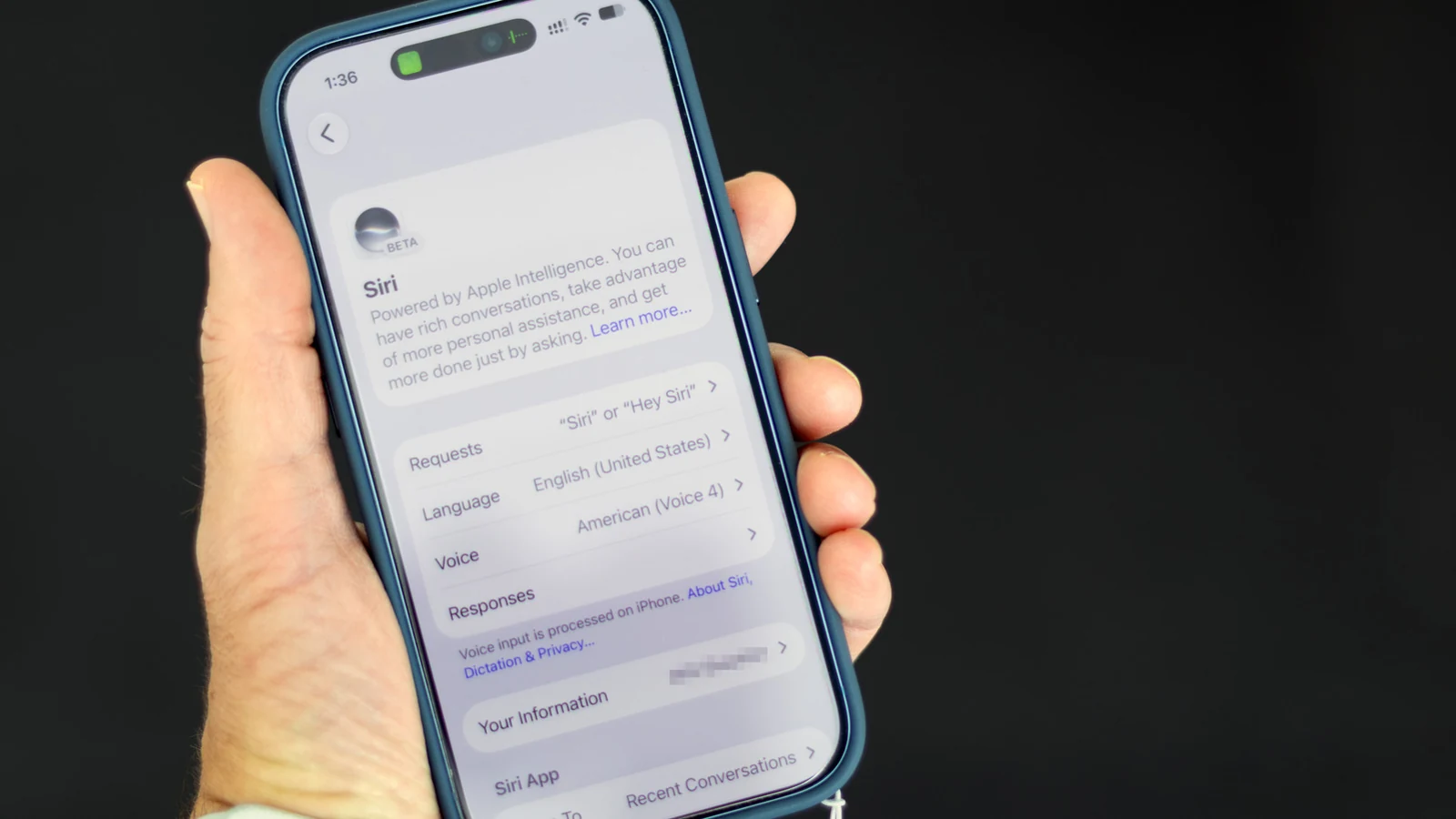
Understanding Apple Intelligence Controls in iOS 27
As Apple brings more AI to the iPhone, the technology is getting harder to avoid. While there is no longer a single switch to shut down Apple Intelligence system-wide on devices running iOS 27, users can still turn off many individual AI features by navigating through the device settings.
These instructions apply specifically to Apple Intelligence-capable devices, which include the iPhone 15 Pro or newer, or the iPhone 16 or newer. For users who remain on iOS 26, a simpler universal shut-off switch is still available by opening Settings, selecting Apple Intelligence & Siri, and turning off Apple Intelligence.
Managing Siri AI and Switching to Siri Classic
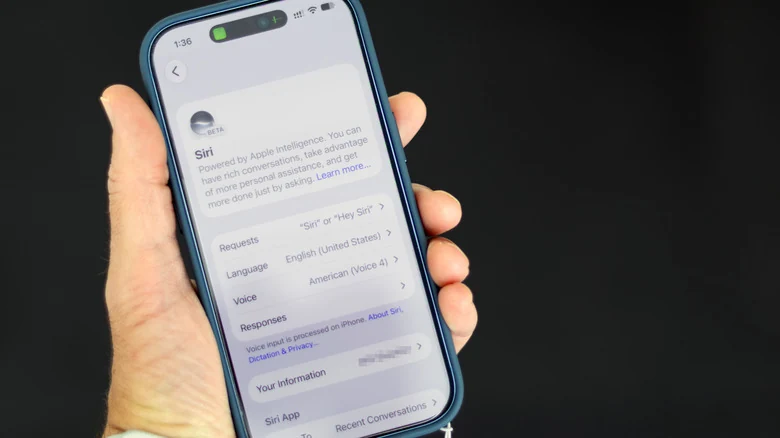
The release of iOS 27 introduced Siri's long-awaited AI revamp, transforming the voice assistant into a more conversational and context-aware tool. However, users who prefer a more traditional experience can disable the new chatbot-like assistant.
To turn off the updated assistant, open Settings, tap Siri, scroll to the bottom, select Turn Off Siri, and confirm on the following screen. Afterward, users can switch back to the older version by tapping Turn On Siri within the same settings menu and choosing Use Siri Classic. This allows the assistant to handle simple tasks like setting timers and playing music without the advanced conversational features.
Disabling AI Summaries for Messages, Mail, and Notifications
Apple Intelligence extends beyond Siri to summarize messages, emails, and notifications automatically. To disable AI-generated recaps of messages in the conversation list, users can open Settings, navigate to Apps, select Messages, and turn off Summarize Messages. For email users, going to Settings, Apps, Mail, and turning off Summarize Message Previews will deactivate inbox summaries and display standard message previews instead.
Notification summaries can also be adjusted, following instances where the technology has gotten embarrassingly wrong in past updates. To disable notification summaries entirely, users can go to Settings, Notifications, Summarize Notifications, and switch the feature off, or toggle individual apps as desired on the same screen.
Additionally, users can prevent Apple Intelligence from automatically placing notifications considered most important at the top of the stack by opening Settings, Notifications, Prioritize Notifications, and turning the feature off.
Restricting Smart Replies, Phone App Suggestions, and Journal Prompts
iOS supports Smart Reply, a tool capable of drafting AI-powered email responses matching a user's writing style. This can be deactivated by navigating to Settings, Apps, Mail, and turning off Personalize Smart Replies.
The Phone app also incorporates AI features that suggest actions for voicemails, such as creating calendar events or reminders based on transcriptions. Users can disable this by going to Settings, Apps, Phone, and turning off Suggestions in Voicemail. Furthermore, features that display relevant information like reservation numbers when calling businesses can be stopped via Settings, Apps, Phone, Apple Intelligence & Siri by turning off Show When Calling.
For users engaging with the Journal app, AI writing suggestions can likewise be removed. Navigating to Settings, Apps, Journal and turning off Get Writing Prompts disables these integrated suggestions.
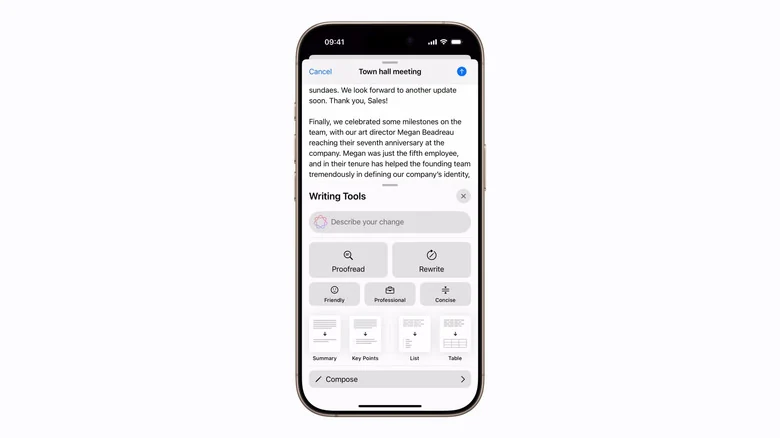
Blocking Writing Tools, Image Creation, and External Extensions
While standard Siri settings do not feature toggles for system-wide writing and image tools, these capabilities can still be blocked through the Screen Time menu. Users can navigate to Settings, Screen Time, Content & Privacy Restrictions, turn on restrictions, and tap Siri.
Inside this menu, changing the toggle for Writing Assistance to Don't Allow blocks Apple's system-wide rewriting, proofreading, and summarizing tools. The same menu allows users to block image creation features tied to Image Playground, as well as Genmoji and Image Wand capabilities.
Users can additionally block Math Assistance to prevent help with complex math problems in Calculator and Notes. The Screen Time restrictions menu also permits blocking extensions if users prefer to stop Apple Intelligence from handing requests off to external services like ChatGPT.
Sources
- EngadgetHow to disable or restrict your iPhone's Apple Intelligence features
Continue chronologically


Related entity coverage
Related stories
Apple Opens Claims Process for $250 Million Siri AI Settlement
Eligible US iPhone owners can now file claims for the $250 million settlement regarding delayed AI features. Find out if you qualify for a payout.
How to Customize iPhone Camera Control Settings
Learn how to customize the Camera Control button on your iPhone 16, 17, and 18 series to streamline your mobile photography workflow.
Apple Store Architect Skeptical of AI-Driven Shopping Future
Ron Johnson, the pioneer behind Apple's retail success, argues that physical stores remain vital despite the industry's multi-billion dollar bet on AI.
How to Create Custom Stickers for iMessage and WhatsApp with ChatGPT
Learn how to use OpenAI's new sticker-specific workflow in ChatGPT to design and export custom stickers directly to iMessage and WhatsApp.