
How to Run Android Apps on a Windows PC
Running Android apps and mobile games directly on a Windows PC is accessible through robust emulators and specialized virtualization software.
 Radwan AbdulhadiEditor and technology writer
Introduction to Android Emulation on Windows
While Microsoft previously planned native Windows 11 integration for mobile software through the Windows Subsystem for Android, Android app support was dropped in 2024. Consequently, users looking to run mobile applications on desktop computers must rely on alternative approaches.
For computers manufactured within the last decade, setting up an Android environment is relatively straightforward. These setups cater not only to mobile gamers seeking superior controls and performance, but also to developers, content creators, and DIY tinkerers.
Top Software Options for Running Android on PC
Users have two primary paths when running Android software on a desktop computer: full-fat emulators or lightweight translation layers. Full-fat emulators create virtual mobile devices where users can install applications from the Play Store or alternative sources.
Prominent choices in the emulator category include BlueStacks and MuMuPlayer. BlueStacks is a well-known option, though its interface features numerous prominent advertisements. In contrast, MuMuPlayer is a free emulator recently updated to Android 15.
Alternatively, Google offers Google Play Games for PC, which utilizes a lightweight virtual machine to translate select Android games directly onto desktop systems. However, this service only supports titles from developers who have opted in, leaving certain games unavailable.
Advantages for Mobile Gamers
Gaming is a primary driver for desktop Android emulation. Mobile devices and tablets often impose strict hardware caps on graphical fidelity and frame rates, whereas powerful desktop hardware can bypass these limitations.
Running mobile games on a PC also grants players robust mouse and keyboard support alongside advanced desktop graphics capabilities. Additionally, users can utilize the Windows 11 Phone Link feature to wirelessly cast their phone screen or apps to a desktop, though those applications continue running on the physical phone hardware.
Productivity and Utility Use Cases
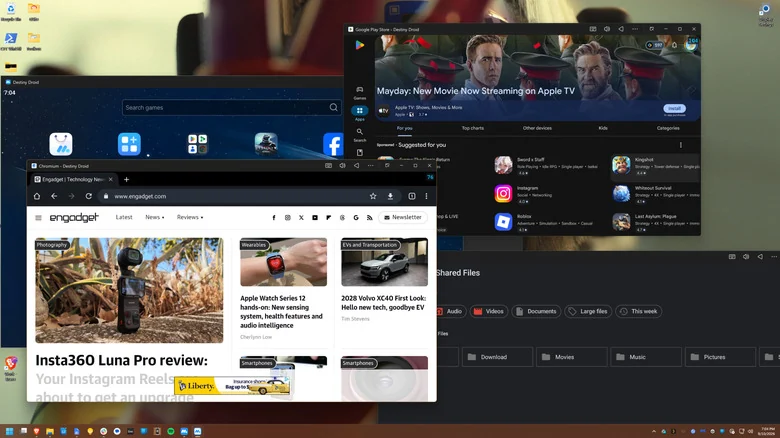
Beyond entertainment, desktop Android emulation serves several practical functions for non-gamers. Many mobile applications lack dedicated desktop editions, or feature expanded capabilities in their mobile iterations compared to web or PC counterparts.
Users can run social media platforms, messaging services, or proprietary utility programs—such as smart home or thermostat controllers—that lack official PC ports. Additionally, low-end computers unable to handle demanding desktop applications may successfully execute slimmed-down Android versions of creative software.
Advanced Features and Workflow Management
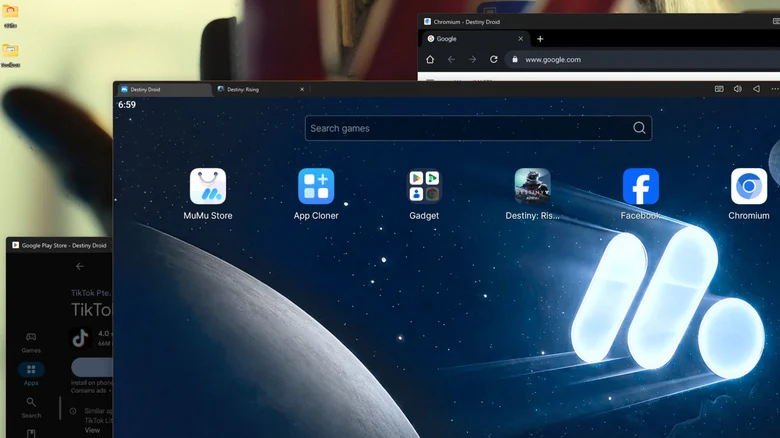
Emulation tools provide specific functional benefits for advanced users and professionals. Both major platforms support parallel instances, enabling multiple virtual Android devices to operate simultaneously on a single computer.
This parallel functionality allows social media creators to manage multiple accounts concurrently, while others use the capability to isolate distinct workflows or separate personal activities from professional environments.
Sources
- EngadgetHow to use Android apps on your Windows PC (and why you might want to)