
How to Properly Set Up and Optimize Your Sonos Speakers
Setting up your Sonos home audio system has become more streamlined as the official application software has seen significant improvements in recent years. Follow this guide to get your speakers online and sounding their best.
 Radwan AbdulhadiEditor and technology writer
Getting Started with Your Sonos System
For users looking to integrate new audio hardware into their home, the process begins by downloading the official software from the App Store or Google Play. While historical user feedback has previously questioned why is the Sonos app so broken, recent software updates have successfully addressed past bugs, resulting in a significantly more stable experience for new and returning users.
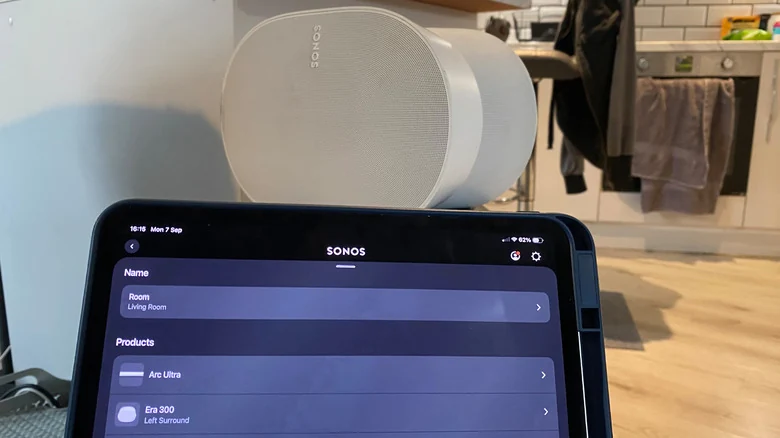
Once the application is installed, users must create a Sonos account and ensure their mobile device is on the same network as the hardware. Whether you are configuring an older unit or a high-end device like the Sonos Era 300, the initial connection flow is designed to be user-friendly. By selecting 'Start a new Sonos system' within the app, the software will automatically scan for your hardware and assist in linking it to your home Wi-Fi.
Expanding Your Audio Setup
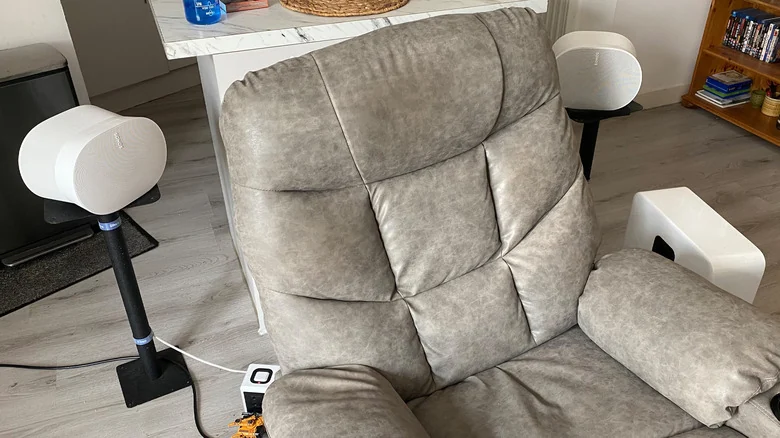
After the primary unit is configured, adding subsequent speakers is a straightforward task. Users can navigate to the settings menu and select 'Add Speaker or Component' to incorporate additional devices. When creating a surround sound configuration, it is recommended to keep models consistent, as mixing different series can impact the performance of your home theater arrangement.
For those who enjoy hands-free controls, the app allows for the integration of voice assistants. By accessing the settings menu, users can select 'Add a Voice Assistant' to enable services like Amazon Alexa. This provides an additional layer of convenience, allowing you to manage playback or volume via simple voice commands.
Troubleshooting Connectivity and Pairing Issues
If the app fails to recognize your hardware, network configuration is the most frequent culprit. Ensure your speakers and your mobile device are not on a guest network, as this often isolates devices from one another. Additionally, VPNs can interfere with the discovery process, so disabling them during setup is advised. Users should also ensure that system permissions are properly granted, especially on Apple devices where network access must be authorized for the application.
In instances where software troubleshooting fails, a physical reboot may be necessary. By unplugging the speaker for at least one minute, you can clear temporary errors. If a full factory reset is required, users should hold the appropriate button—usually the Bluetooth or Join button—while powering on the device until the status light indicates a successful reset. Note that this process will erase existing EQ and TruePlay configurations.
Optimizing Audio Performance
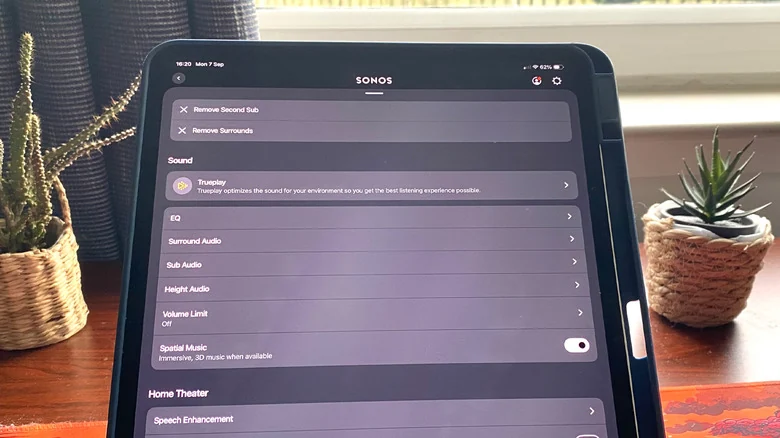
Once your system is stable, you can significantly enhance the output quality through the app’s EQ settings. By navigating to the sound menu, users can adjust bass, treble, and subwoofer levels to their preference. For users with advanced home theater setups, such as those with a Dolby Atmos soundbar, it is essential to follow recommended guidelines regarding the best setting and placement for your Dolby Atmos soundbar to maximize the spatial audio experience.
Finally, the TruePlay feature serves as a valuable tool for room-specific calibration. This function uses the smartphone's microphone to measure how sound reflects off walls and furniture, creating a balanced profile. Combined with features like 'Night Sound' and 'Speech Enhancement,' these in-app tools provide granular control over the listening experience, ensuring that voices remain clear and audio levels stay considerate for those living in shared environments.
Sources
- EngadgetHow to set up your Sonos speakers using the app