How Instagram's Repost Feature Works for Posts and Reels
Instagram features a simple repost tool represented by two curved arrows, making it easier than ever to share your favorite public posts and reels with your followers.
 Radwan AbdulhadiEditor and technology writer
Understanding Instagram's Repost Feature
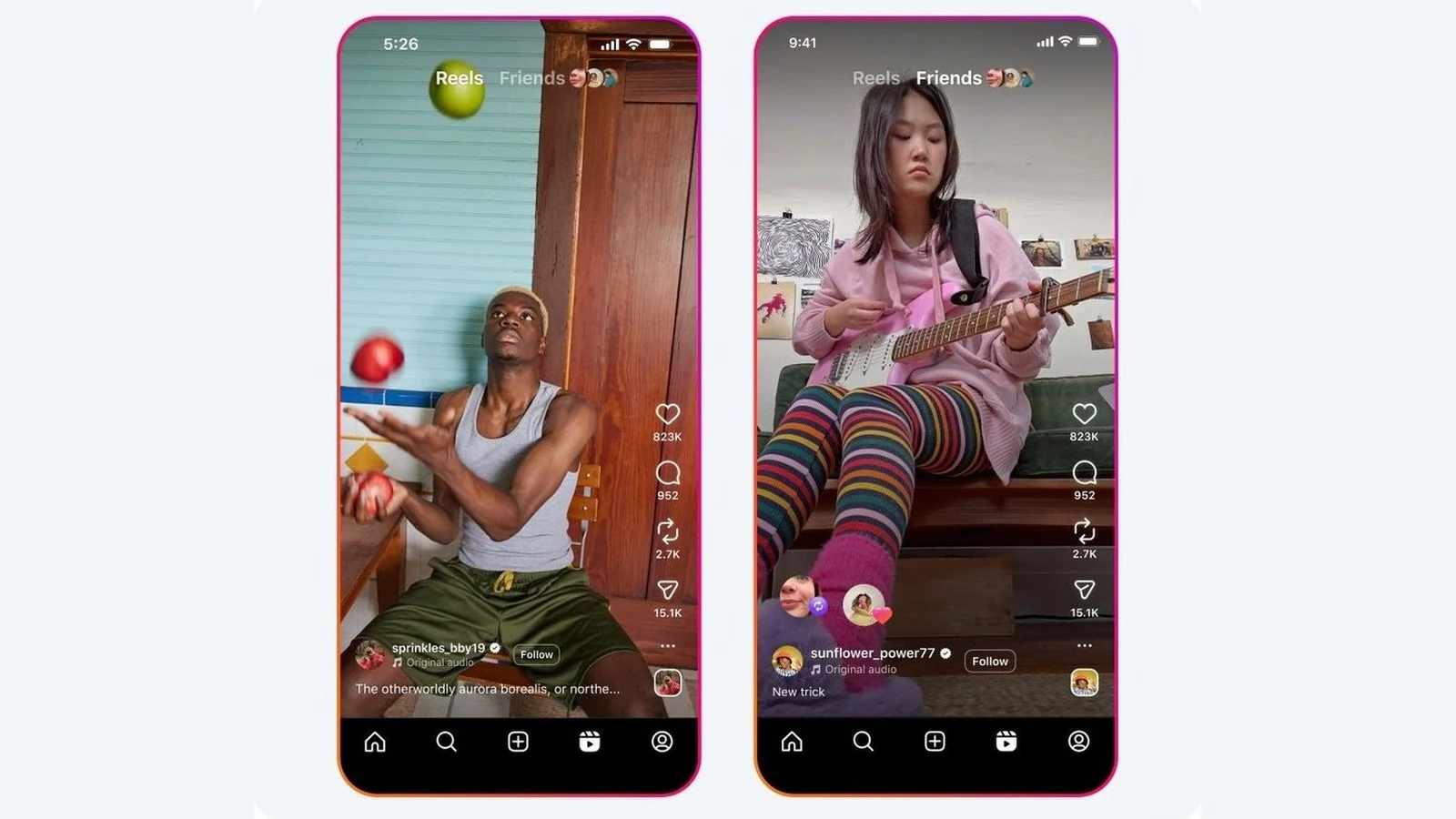
If you spend any amount of time on Instagram, you have likely noticed a small icon under each post and reel featuring two curved arrows. Positioned right after the heart icon for likes and the comments bubble, this third icon handles reposting. According to a report by Engadget, it stands out as one of the simplest ways to share content from other creators without copying it into Stories or sending individual direct messages to friends. Further details are available from Engadget in the original source material.
Unlike older sharing workarounds, the repost function maintains a direct line back to the original creator. This ensures creators receive proper credit for their work while allowing their content to reach a broader audience. For users, the feature offers a way to curate a dedicated corner of a profile with interesting content created by others. Reposted content appears in followers' feeds and lands within the Friends tab in Reels, while also piling up in a dedicated tab on the user's profile for easy browsing.
What Reposting Actually Accomplishes on the Platform
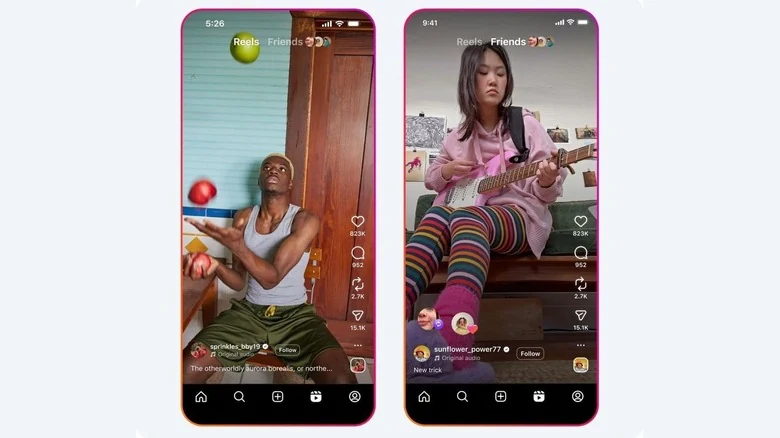
The repost function allows any user to reshare a public post or reel from another account directly to their own followers. All reposted content is gathered together in a dedicated tab on the user's profile, which can be viewed by tapping the profile picture and selecting the repost icon featuring two circling arrows. This display applies to any profile a user visits on the platform.
A repost is distinct from a regular post because it does not consist of newly created content by the user. Instead, it amplifies existing public content while remaining permanently tied to the original creator rather than appearing as the user's own work. Unlike content shared to Stories, which disappears after 24 hours, reposts remain accessible indefinitely. However, users can only repost content if the original creator has explicitly enabled the feature.
Managing Permissions and Enabling Reposts
Controlling whether other accounts can repost your personal content is a straightforward process within the app. Users can navigate to their profile, tap the menu button at the top, and select Sharing and reuse. Under the section allowing people to share posts and reels, users simply flip the toggle on for Reposts on posts and reels.
Similarly, executing a repost is designed to be quick. When browsing the platform, users find a public post or reel they wish to share and tap the repost icon with the two curved arrows. An optional short note can be added using the thought-bubble icon that appears on screen. Tapping save completes the process, instantly making the content visible to all followers.

How to Undo Accidental Reposts
Because the repost button sits in close proximity to other interaction tools, it is relatively easy to press it by accident. Fortunately, Instagram provides several straightforward options to delete unintentional reposts. A user can simply return to the post and tap the repost button a second time to reverse the action. Alternatively, long-pressing the post itself brings up an option to delete the repost directly from the menu.
Another method involves returning to the video, tapping the bubble featuring the user profile picture, and selecting delete. For users managing multiple mistakes at once, a comprehensive cleanup tool is available. By heading to profile settings, selecting your activity, navigating to reposts, and tapping select in the corner, users can check multiple posts for removal and tap delete at the bottom. This cleanup process works identically across both the mobile application and web browsers.
Sources
- EngadgetWhat is the purpose of reposting on Instagram and how do you do it?
Continue chronologically
Related stories
Meta Tests Full-Screen TikTok-Style Feeds for Facebook and Instagram
Meta is testing opening Facebook and Instagram directly into full-screen vertical video feeds, previewing a potential seismic shift for social media.
Instagram Tests Long-Form Videos Without Payment Plan
Instagram is testing long-form horizontal videos up to 90 minutes long, but creators are complaining about a lack of monetization features compared to YouTube.
Instagram Expands Long-Form Video and TV Viewing Features
Instagram is updating its platform to support 90-minute videos, horizontal viewing, and TV integration to capture the expanding clip and streaming economy.
Instagram Pushes Into Longform and Widescreen Video With Features
Instagram is introducing a new longform horizontal video format called Features, shifting its strategy to compete with platforms like YouTube.